I think this core dilemma – complexity vs simplicity, capability vs maintainability – is at the heart of a lot of the debates about web app architecture. Unfortunately, these debates are so often tied up in other factors (a kind of web dev culture war, Twitter-stoked conflicts, maybe even a generational gap) that it can be hard to see clearly what the debate is even about.
At the risk of grossly oversimplifying things, I propose that the core of the debate can be summed up by these truisms:
The best SPA is better than the best MPA.
The average SPA is worse than the average MPA.
The first statement should be clear to most seasoned web developers. Show me an MPA, and I can show you how to make it better with JavaScript. Added too much JavaScript? I can show you some clever ways to minimize, defer, and multi-thread that JavaScript. Ran into some bugs, because now you’ve deviated from the browser’s built-in behavior? There are always ways to fix it! You’ve got JavaScript.
Whereas with an MPA, you are delegating some responsibility to the browser. Want to animate navigations between pages? You can’t (yet). Want to avoid the flash of white? You can’t, until Chrome fixes it (and it’s not perfect yet). Want to avoid re-rendering the whole page, when there’s only a small subset that actually needs to change? You can’t; it’s a “full page refresh.”
My second truism may be more controversial than the first. But I think time and experience have shown that, whatever the promises of SPAs, the reality has been less convincing. It’s not hard to find examples of poorly-built SPAs that score badly on a variety of metrics (performance, accessibility, reliability), and which could have been built better and more cheaply as a bog-standard MPA.
Example: subsequent navigations
To illustrate, let’s consider one of the main value propositions of an SPA: making subsequent navigations faster.
Now, to be clear, this is a bit of an unfair comparison: the Svelte site is preloading content when you hover over links, so there’s no network call by the time you click. (Nice optimization!) Whereas the Astro site is not using a Service Worker or other offlining – if you throttle to 3G, it’s even slower relative to the Svelte site.
But I totally believe Rich is right! Even with a Service Worker, Astro would have a hard time beating SvelteKit. The amount of DOM being updated here is small and static, and doing the minimal updates in JavaScript should be faster than asking the browser to re-render the full HTML. It’s hard to beat element.innerHTML = '...'.
However, in many ways this site represents the ideal conditions for an SPA navigation: it’s small, it’s lightweight, it’s built by the kind of experts who build their own JavaScript framework, and those experts are also keen to get performance right – since this website is, in part, a showcase for the framework they’re offering. What about real-world websites that aren’t built by JavaScript framework authors?
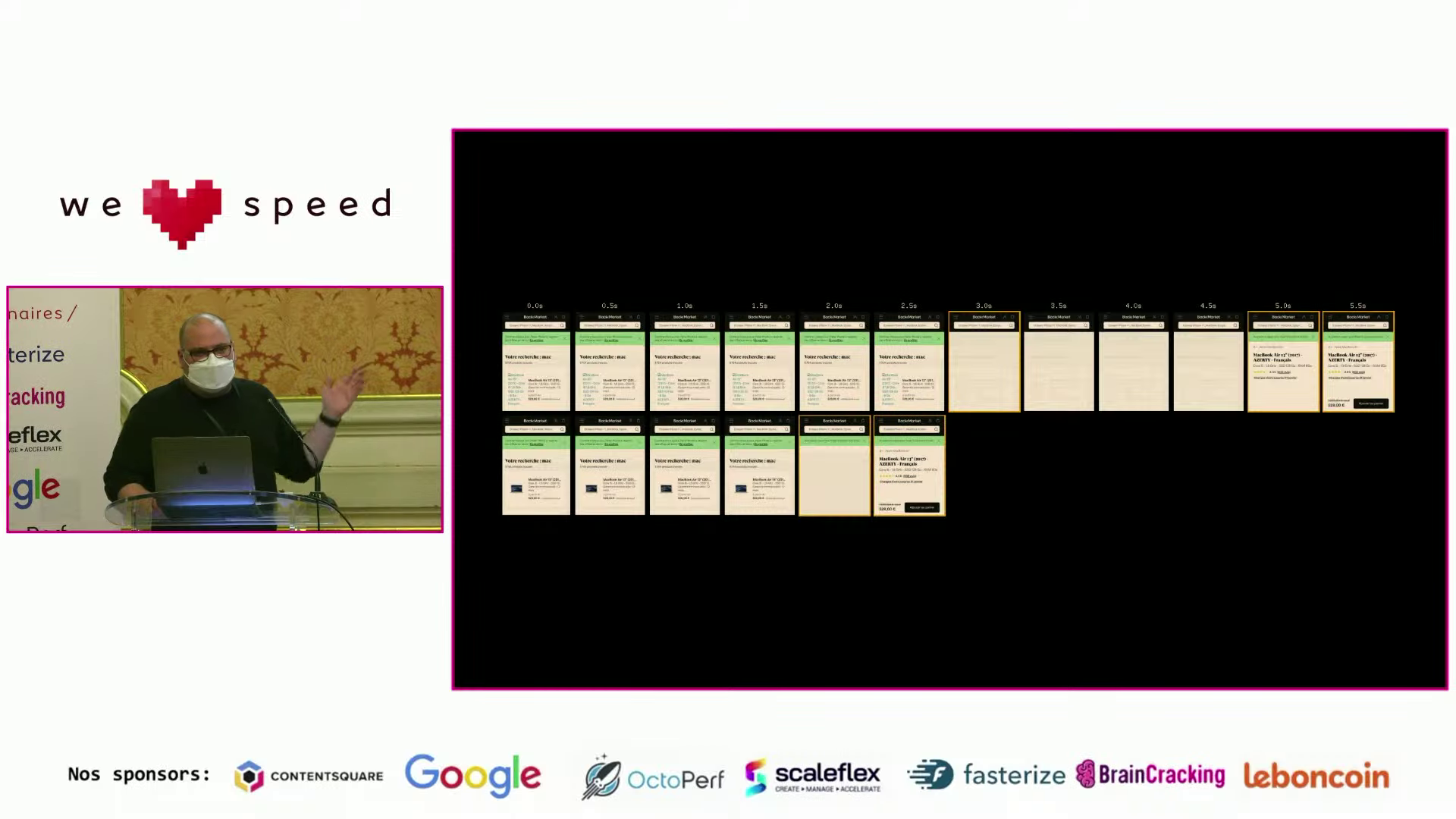
Anthony Ricaud recently gave a talk (in French – apologies to non-Francophones) where he analyzed the performance of real-world SPAs. In the talk, he asks: What if these sites used standard MPA navigations?
To answer this, he built a proxy that strips the site of its first-party JavaScript (leaving the kinds of ads and trackers that, sadly, many teams are not allowed to forgo), as well as another version of the proxy that doesn’t strip any JavaScript. Then, he scripted WebPageTest to click an internal link, measuring the load times for both versions (on throttled 4G).
So which was faster? Well, out of the three sites he tested, on both mobile (Moto G4) and desktop, the MPA was either just as fast or faster, every time. In some cases, the WebPageTest filmstrips even showed that the MPA version was faster by several seconds. (Note again: these are subsequent navigations.)
On top of that, the MPA sites gave immediate feedback to the user when clicking – showing a loading indicator in the browser chrome. Whereas some of the SPAs didn’t even manage to show a “skeleton” screen before the MPA had already finished loading.
Screenshot from Anthony Ricaud’s talk. The SPA version is on top (5.5s), and the MPA version is on bottom (2.5s).
Now, I don’t think this experiment is perfect. As Anthony admits, removing inline <script>s removes some third-party JavaScript as well (the kind that injects itself into the DOM). Also, removing first-party JavaScript removes some non-SPA-related JavaScript that you’d need to make the site interactive, and removing any render-blocking inline <script>s would inherently improve the visual completeness time.
Even with a perfect experiment, there are a lot of variables that could change the outcome for other sites:
How fast is the SSR?
Is the HTML streamed?
How much of the DOM needs to be updated?
Is a network request required at all?
What JavaScript framework is being used?
How fast is the client CPU?
Etc.
Still, it’s pretty gobsmacking that JavaScript was slowing these sites down, even in the one case (subsequent navigations) where JavaScript should be making things faster.
Exhausted developers and clever developers
Now, let’s return to my truisms from the start of the post:
The best SPA is better than the best MPA.
The average SPA is worse than the average MPA.
The cause of so much debate, I think, is that two groups of developers may look at this situation, agree on the facts on the ground, but come to two different conclusions:
“The average SPA sucks? Well okay, I should stop building SPAs then. Problem solved.” – Exhausted developer
“The average SPA sucks? That’s just because people haven’t tried hard enough! I can think of 10 ways to fix it.” – Clever developer
Let’s call these two archetypes the exhausted developer and the clever developer.
The exhausted developer has had enough with managing the complexity of “modern” web sites and web applications. Too many build tools, too many code paths, too much to think about and maintain. They have JavaScript fatigue. Throw it all away and simplify!
The clever developer is similarly frustrated by the state of modern web development. But they also deeply understand how the web works. So when a tool breaks or a framework does something in a sub-optimal way, it irks them, because they can think of a better way. Why can’t a framework or a tool fix this problem? So they set out to find a new tool, or to build it themselves.
The thing is, I think both of these perspectives are right. Clever developers can always improve upon the status quo. Exhausted developers can always save time and effort by simplifying. And one group can even help the other: for instance, maybe Parcel is approachable for those exhausted by Webpack, but a clever developer had to go and build Parcel first.
Conclusion
The disparity between the best and the average SPA has been around since the birth of SPAs. In the mid-2000s, people wanted to build SPAs because they saw how amazing GMail was. What they didn’t consider is that Google had a crack team of experts monitoring every possible problem with SPAs, right down to esoteric topics like memory leaks. (Do you have a team like that?)
Ever since then, JavaScript framework and tooling authors have been trying to democratize SPA tooling, bringing us the kinds of optimizations previously only available to the Googles and the Facebooks of the world. Their intentions have been admirable (I would put my own fuite on that pile), but I think it’s fair to say the results have been mixed.
An expert developer can stand up on a conference stage and show off the amazing scores for their site (perfect performance! perfect accessibility! perfect SEO!), and then an excited conference-goer returns to their team, convinces them to use the same tooling, and two years later they’ve built a monstrosity. When this happens enough times, the same conference-goer may start to distrust the next dazzling demo they see.
And yet… the web dev community marches forward. Today I can grab any number of “starter” app toolkits and build something that comes out-of-the-box with code-splitting, Service Workers, tree-shaking, a thousand different little micro-optimizations that I don’t even have to know the names of, because someone else has already thought of it and gift-wrapped it for me. That is a miracle, and we should be grateful for it.
Given enough innovation in this space, it is possible that, someday, the average SPA could be pretty great. If it came batteries-included with proper scroll, focus, and screen reader announcements, tooling to identify performance problems (including memory leaks), progressive DOM rendering (e.g. Jake Archibald’s hack), and a bunch of other optimizations, it’s possible that developers would fall into the “pit of success” and consistently make SPAs that outclass the equivalent MPA. I remain skeptical that we’ll get there, and even the best SPA would still have problems (complexity, performance on slow clients, etc.), but I can’t fault people for trying.
At the same time, browsers never stop taking the lessons from userland and upstreaming them into the browser itself, giving us more lines of code we can potentially delete. This is why it’s important to periodically re-evaluate the assumptions baked into our tooling.
Today, I think the core dilemma between SPAs and MPAs remains unresolved, and will maybe never be resolved. Both SPAs and MPAs have their strengths and weaknesses, and the right tool for the job will vary with the size and skills of the team and the product they’re trying to build. It will also vary over time, as browsers evolve. The important thing, I think, is to remain open-minded, skeptical, and analytical, and to accept that everything in software development has tradeoffs, and none of those tradeoffs are set in stone.
Update: this post was updated with some new benchmark numbers in October 2022.
Last year, I asked the question: Does shadow DOM improve style performance? I didn’t give a clear answer, so perhaps it’s no surprise that some folks weren’t sure what conclusion to draw.
In this post, I’d like to present a new benchmark that hopefully provides a more solid answer.
Shadow DOM and style performance
To recap: shadow DOM has some theoretical benefits to style calculation, because it allows the browser to work with a smaller DOM size and smaller CSS rule set. Rather than needing to compare every CSS rule against every DOM node on the page, the browser can work with smaller “sub-DOMs” when calculating style.
However, browsers have a lot of clever optimizations in this area, and userland “style scoping” solutions have emerged (e.g. Vue, Svelte, and CSS Modules) that effectively hook into these optimizations. The way they typically do this is by adding a class or an attribute to the CSS selector: e.g. * { color: red } becomes *.xxx { color: red }, where xxx is a randomly-generated token unique to each component.
After crunching the numbers, my post showed that class-based style scoping was actually the overall winner. But shadow DOM wasn’t far behind, and it was the more consistently fast option.
These nuances led to a somewhat mixed reaction. For instance, here’s one common response I saw (paraphrasing):
The fastest option overall is class-based scoped styles, ala Svelte or CSS Modules. So shadow DOM isn’t really that great.
But looking at the same data, you could reach another, totally reasonable, conclusion:
With shadow DOM, the performance stays constant instead of scaling with the size of the DOM or the complexity of the CSS. Shadow DOM allows you to use whatever CSS selectors you want and not worry about performance.
Part of it may have been people reading into the data what they wanted to believe. If you already dislike shadow DOM (or web components in general), then you can read my post and conclude, “Wow, shadow DOM is even more useless than I thought.” Or if you’re a web components fan, then you can read my post and think, “Neat, shadow DOM can improve performance too!” Data is in the eye of the beholder.
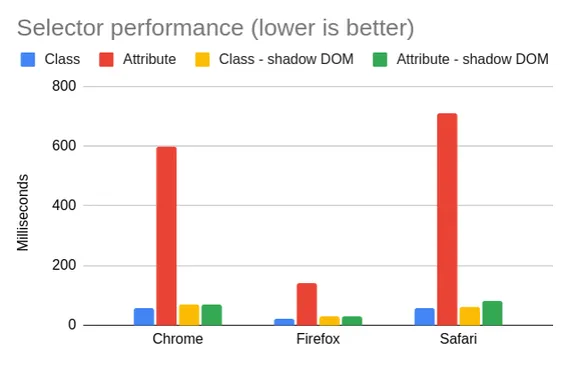
To drive this point home, here’s the same data from my post, but presented in a slightly different way:
Click for details
This is 1,000 components, 10 rules per component.
Selector performance (ms)
Chrome
Firefox
Safari
Class selectors
58.5
22
56
Attribute selectors
597.1
143
710
Class selectors – shadow DOM
70.6
30
61
Attribute selectors – shadow DOM
71.1
30
81
As you can see, the case you really want to avoid is the second one – bare attribute selectors. Inside of the shadow DOM, though, they’re fine. Class selectors do beat shadow DOM overall, but only by a rounding error.
My post also showed that more complex selectors are consistently fast inside of the shadow DOM, even if they’re much slower at the global level. This is exactly what you would expect, given how shadow DOM works – the real surprise is just that shadow DOM doesn’t handily win every category.
Re-benchmarking
It didn’t sit well with me that my post didn’t draw a firm conclusion one way or the other. So I decided to benchmark it again.
This time, I tried to write a benchmark to simulate a more representative web app. Rather than focusing on individual selectors (ID, class, attribute, etc.), I tried to compare a userland “scoped styles” implementation against shadow DOM.
My new benchmark generates a DOM tree based on the following inputs:
Number of “components” (web components are not used, since this benchmark is about shadow DOM exclusively)
Elements per component (with a random DOM structure, with some nesting)
CSS rules per component (randomly generated, with a mix of tag, class, attribute, :not(), and :nth-child() selectors, and some descendant and compound selectors)
Classes per component
Attributes per component
To find a good representative for “scoped styles,” I chose Vue 3’s implementation. My previous post showed that Vue’s implementation is not as fast as that of Svelte or CSS Modules, since it uses attributes instead of classes, but I found Vue’s code to be easier to integrate. To make things a bit fairer, I added the option to use classes rather than attributes.
One subtlety of Vue’s style scoping is that it does not scope ancestor selectors. For instance:
Technically, Svelte’s implementation is more optimal, not only because it uses classes rather than attributes, but because it can rely on the Bloom filter optimization for ancestor lookups (e.g. :not(div) div → .svelte-xxx:not(div) div.svelte-xxx, with .svelte-xxx in the ancestor). However, I kept the Vue implementation because 1) this analysis is relevant to Vue users at least, and 2) I didn’t want to test every possible permutation of “scoped styles.” Adding the “class” optimization is enough for this blog post – perhaps the “ancestor” optimization can come in future work. (Update: this is now covered below.)
Methodology
I ran this benchmark on a 2021 MacBook Pro (M1), running macOS Monterey 12.4. The M1 is perhaps not ideal for this, since it’s a very fast computer, but I used it because it’s the device I had, and it can run all three of Chrome, Firefox, and Safari. This way, I can get comparable numbers on the same hardware.
In the test, I used the following parameters:
Parameter
Value
Number of components
1000
Elements per component
10
CSS rules per component
10
Classes per element
2
Attributes per element
2
I chose these values to try to generate a reasonable “real-world” app, while also making the app large enough and interesting enough that we’d actually get some useful data out of the benchmark. My target is less of a “static blog” and more of a “heavyweight SPA.”
There are certainly more inputs I could have added to the benchmark: for instance, DOM depth. As configured, the benchmark generates a DOM with a maximum depth of 29 (measured using this snippet). Incidentally, this is a decent approximation of a real-world app – YouTube measures 28, Reddit 29, and Wikipedia 17. But you could certainly imagine more heavyweight sites with deeper DOM structures, which would tend to spend more time in descendant selectors (outside of shadow DOM, of course – descendant selectors cannot cross shadow boundaries).
For each measurement, I took the median of 5 runs. I didn’t bother to refresh the page between each run, because it didn’t seem to make a big difference. (The relevant DOM was being blown away every time.) I also didn’t randomize the stylesheets, because the browsers didn’t seem to be doing any caching that would require randomization. (Browsers have a cache for stylesheet parsing, as I discussed in this post, but not for style calculation, insofar as it matters for this benchmark anyway.)
Although the benchmark has some randomness, I used random-seedable with a consistent seed to ensure reproducible results. (Not that the randomness was enough to really change the numbers much, but I’m a stickler for details.)
The benchmark uses a requestPostAnimationFrame polyfill to measure style/layout/paint performance (see this post for details). To focus on style performance only, a DOM structure with only absolute positioning is used, which minimizes the time spent in layout and paint.
And just to prove that the benchmark is actually measuring what I think it’s measuring, here’s a screenshot of the Chrome DevTools Performance tab:
Note that the measured time (“total”) is mostly taken up by “Recalculate Style.”
Results
When discussing the results, it’s much simpler to go browser-by-browser, because each one has different quirks.
One of the things I like about analyzing style performance is that I see massive differences between browsers. It’s one of those areas of browser performance that seems really unsettled, with lots of work left to do.
That is… unless you’re Firefox. I’m going to start off with Firefox, because it’s the biggest outlier out of the three major browser engines.
Firefox
Firefox’s Stylo engine is fast. Like, really fast. Like, so fast that, if every browser were like Firefox, there would be little point in discussing style performance, because it would be a bit like arguing over the fastest kind of for-loop in JavaScript. (I.e., interesting minutia, but irrelevant except for the most extreme cases.)
In almost every style calculation benchmark I’ve seen over the past five years, Firefox smokes every other browser engine to the point where it’s really in a class of its own. Whereas other browsers may take over 1,000ms in a given scenario, Firefox will take ~100ms for the same scenario on the same hardware.
So keep in mind that, with Firefox, we’re going to be talking about really small numbers. And the differences between them are going to be even smaller. But here they are:
Click for table
Scenario
Firefox 101
Scoping – classes
30
Scoping – attributes
38
Shadow DOM
26
Unscoped
114
Note that, in this benchmark, the first three bars are measuring roughly the same thing – you end up with the same DOM with the same styles. The fourth case is a bit different – all the styles are purely global, with no scoping via classes or attributes. It’s mostly there as a comparison point.
My takeaway from the Firefox data is that scoping with either classes, attributes, or shadow DOM is fine – they’re all pretty fast. And as I mentioned, Firefox is quite fast overall. As we move on to other browsers, you’ll see how the performance numbers get much more varied.
Chrome
The first thing you should notice about Chrome’s data is how much higher the y-axis is compared to Firefox. With Firefox, we were talking about ~100ms at the worst, whereas now with Chrome, we’re talking about an order of magnitude higher: ~1,000ms. (Don’t feel bad for Chrome – the Safari numbers will look pretty similar.)
Click for table
Scenario
Chrome 102
Scoping – classes
357
Scoping – attributes
614
Shadow DOM
49
Unscoped
1022
Initially, the Chrome data tells a pretty simple story: shadow DOM is clearly the fastest, followed by style scoping with classes, followed by style scoping with attributes, followed by unscoped CSS. So the message is simple: use Shadow DOM, but if not, then use classes instead of attributes for scoping.
I noticed something interesting with Chrome, though: the performance numbers are vastly different for these two cases:
1,000 components: insert 1,000 different <style>s into the <head>
1,000 components: concatenate those styles into one big <style>
As it turns out, this simple optimization greatly improves the Chrome numbers:
Click for table
Scenario
Chrome 102 – separate styles
Chrome 102 – concatenated
Classes
357
48
Attributes
614
43
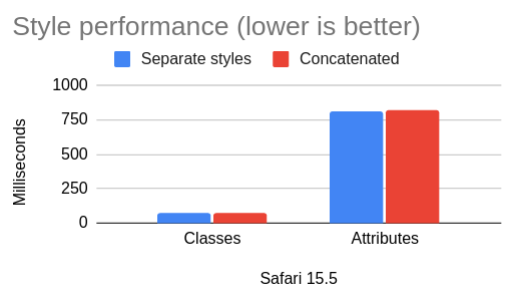
When I first saw these numbers, I was confused. I could understand this optimization in terms of reducing the cost of DOM insertions. But we’re talking about style calculation – not DOM API performance. In theory, it shouldn’t matter whether there are 1,000 stylesheets or one big stylesheet. And indeed, Firefox and Safari show no difference between the two:
Click for table
Scenario
Firefox 101 – separate styles
Firefox 101 – concatenated
Classes
30
29
Attributes
38
38
Click for table
Scenario
Safari 15.5 – separate styles
Safari 15.5. – concatenated
Classes
75
73
Attributes
812
820
This behavior was curious enough that I filed a bug on Chromium. According to the Chromium engineer who responded (thank you!), this is because of a design decision to trade off some initial performance in favor of incremental performance when stylesheets are modified or added. (My benchmark is a bit unfair to Chrome, since it only measures the initial calculation. A good idea for a future benchmark!)
This is actually a pretty interesting data point for JavaScript framework and bundler authors. It seems that, for Chromium anyway, the ideal technique is to concatenate stylesheets similarly to how JavaScript bundlers do code-splitting – i.e. trying to concatenate as much as possible, while still splitting in some cases to optimize for caching across routes. (Or you could go full inline and just put one big <style> on every page.) Keep in mind, though, that this is a peculiarity of Chromium’s current implementation, and it could go away at any moment if Chromium decides to change it.
In terms of the benchmark, though, it’s not clear to me what to do with this data. You might imagine that it’s a simple optimization for a JavaScript framework (or meta-framework) to just concatenate all the styles together, but it’s not always so straightforward. When a component is mounted, it may call getComputedStyle() on its own DOM nodes, so batching up all the style insertions until after a microtask is not really feasible. Some meta-frameworks (such as Nuxt and SvelteKit) leverage a bundler to concatenate the styles and insert them before the component is mounted, but it feels a bit unfair to depend on that for the benchmark.
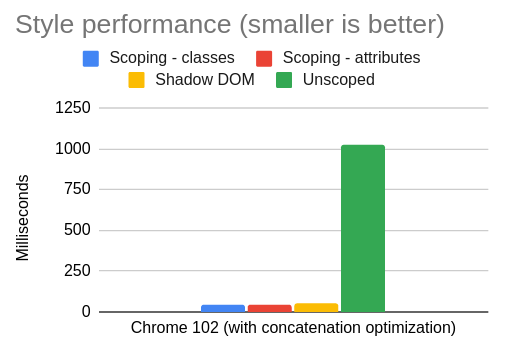
To me, this is one of the core advantages of shadow DOM – you don’t have to worry if your bundler is configured correctly or if your JavaScript framework uses the right kind of style scoping. Shadow DOM is just performant, all of the time, full stop. That said, here is the Chrome comparison data with the concatenation optimization applied:
Click for table
Scenario
Chrome 102 (with concatenation optimization)
Scoping – classes
48
Scoping – attributes
43
Shadow DOM
49
Unscoped
1022
The first three are close enough that I think it’s fair to say that all of the three scoping methods (class, attribute, and shadow DOM) are fast enough.
Safari
In our final tour of browsers, we arrive at Safari:
Click for table
Scenario
Safari 15.5
Scoping – classes
75
Scoping – attributes
812
Shadow DOM
94
Unscoped
840
To me, the Safari data is the easiest to reason about. Class scoping is fast, shadow DOM is fast, and unscoped CSS is slow. The one surprise is just how slow attribute selectors are compared to class selectors. Maybe WebKit has some more optimizations to do in this space – compared to Chrome and Firefox, attributes are just a much bigger performance cliff relative to classes.
This is another good example of why class scoping is superior to attribute scoping. It’s faster in all the engines, but the difference is especially stark in Safari. (Or you could use shadow DOM and not worry about it at all.)
Conclusion
Performance shouldn’t be the main reason you choose a technology like scoped styles or shadow DOM. You should choose it because it fits well with your development paradigm, it works with your framework of choice, etc. Style performance usually isn’t the biggest bottleneck in a web application, although if you have a lot of CSS or a large DOM size, then you may be surprised by the amount of “Recalculate Style” costs in your next performance trace.
One can also hope that someday browsers will advance enough that style calculation becomes less of a concern. As I mentioned before, Stylo exists, it’s very good, and other browsers are free to borrow its ideas for their own engines. If every browser were as fast as Firefox, I wouldn’t have a lot of material for this blog post.
This is the same data presented in this post, but on a single chart. Just notice how much Firefox stands out from the other browsers.Click for table
Scenario
Chrome 102
Firefox 101
Safari 15.5
Scoping – classes
357
30
75
Scoping – attributes
614
38
812
Shadow DOM
49
26
94
Unscoped
1022
114
840
Scoping – classes – concatenated
48
29
73
Scoping – attributes – concatenated
43
38
820
For those who dislike shadow DOM, there is also a burgeoning proposal in the CSS Working Group for style scoping. If this proposal were adopted, it could provide a less intrusive browser-native scoping mechanism than shadow DOM, similar to the abandoned <style scoped> proposal. I’m not a browser developer, but based on my reading of the spec, I don’t see why it couldn’t offer the same performance benefits we see with shadow DOM.
In any case, I hope this blog post was interesting, and helped shine light on an odd and somewhat under-explored space in web performance. Here is the benchmark source code and a live demo in case you’d like to poke around.
After writing this post, I realized I should take my own advice and automate the benchmark so that I could have more confidence in the numbers (and make it easier for others to reproduce).
So, using Tachometer, I re-ran the benchmark, taking the median of 25 samples, where each sample uses a fresh browser session. Here are the results:
Click for table
Scenario
Chrome 102
Firefox 101
Safari 15.5
Scoping – classes
277.1
45
80
Scoping – attributes
418.8
54
802
Shadow DOM
56.80000001
67
82
Unscoped
820.4
190
857
Scoping – classes – concatenated
44.30000001
42
80
Scoping – attributes – concatenated
44.5
51
802
Unscoped – concatenated
251.3
167
865
As you can see, the overall conclusion of my blog post doesn’t change, although the numbers have shifted slightly in absolute terms.
I also added “Unscoped – concatenated” as a category, because I realized that the “Unscoped” scenario would benefit from the concatenation optimization as well (in Chrome, at least). It’s interesting to see how much of the perf win is coming from concatenation, and how much is coming from scoping.
If you’d like to see the raw numbers from this benchmark, you can download them here.
Second afterword – even more data
Updated June 25, 2022
You may wonder how much Firefox’s Stylo engine is benefiting from the 10 cores in that 2021 Mac Book Pro. So I unearthed my old 2014 Mac Mini, which has only 2 cores but (surprisingly) can still run macOS Monterey. Here are the results:
Click for table
Scenario
Chrome 102
Firefox 101
Safari 15.5
Scoping – classes
717.4
107
187
Scoping – attributes
1069.5
162
2853
Shadow DOM
227.7
117
233
Unscoped
2674.5
452
3132
Scoping – classes – concatenated
189.3
104
188
Scoping – attributes – concatenated
191.9
159
2826
Unscoped – concatenated
865.8
422
3148
(Again, this is the median of 25 samples. Raw data.)
Amazingly, Firefox seems to be doing even better here relative to the other browsers. For “Unscoped,” it’s 14.4% of the Safari number (vs 22.2% on the MacBook), and 16.9% of the Chrome number (vs 23.2% on the MacBook). Whatever Stylo is doing, it’s certainly impressive.
Third update – scoping strategies
Updated October 8, 2022
I was curious about which kind of scoping strategy (e.g. Svelte-style or Vue-style) performed best in the benchmark. So I updated the benchmark to generate three “scoped selector” styles:
Full selector: ala Svelte, every part of the selector has a class or attribute added (e.g. div div becomes div.xyz div.xyz)
Right-hand side (RHS): ala Vue, only the right-hand side selector is scoped with a class or attribute (e.g. div div becomes div div.xyz)
Tag prefix: ala Enhance, the tag name of the component is prefixed (e.g. div div becomes my-component div div)
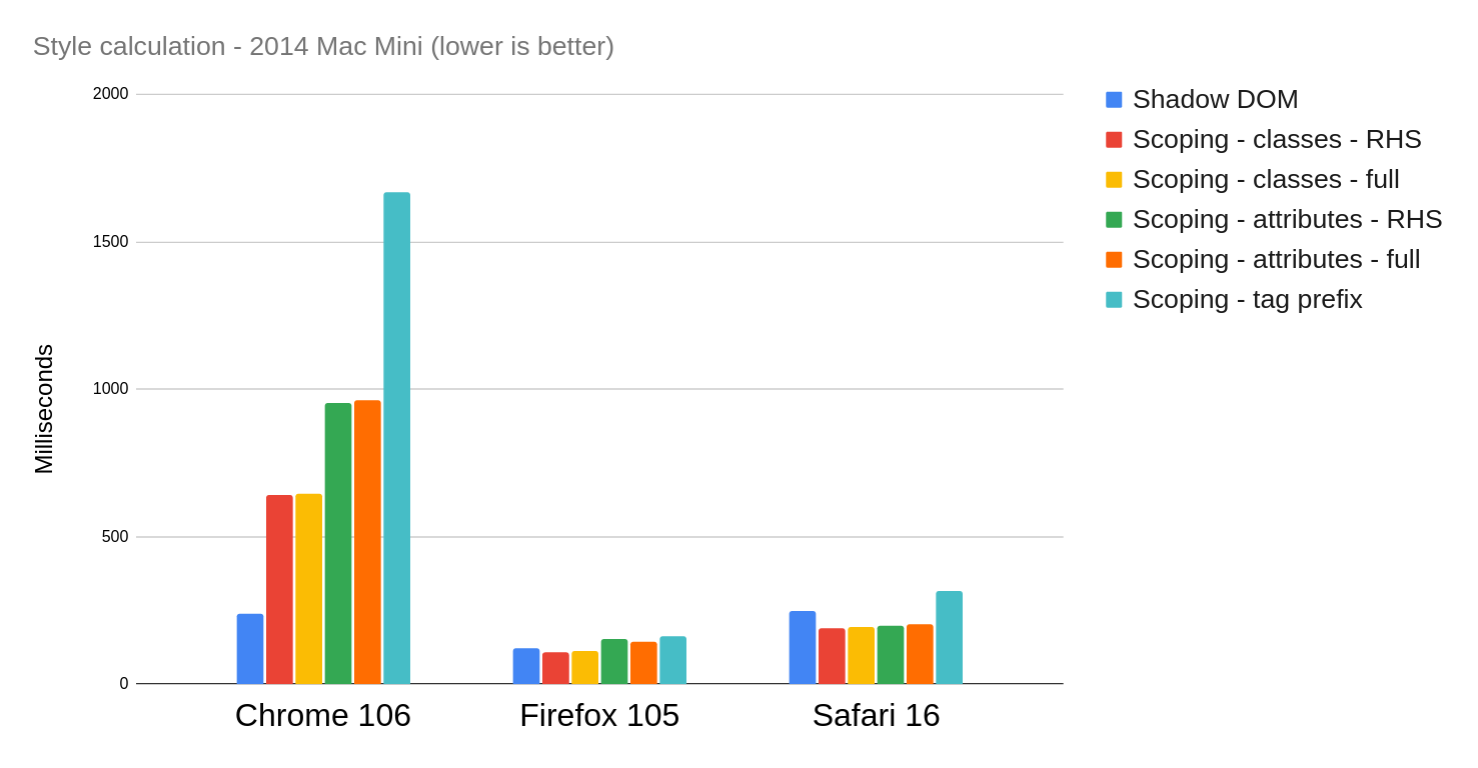
Here are the results, taking the median of 25 iterations on a 2014 Mac Mini (raw data):
Same chart with “Unscoped” removed
Table
Scenario
Chrome 106
Firefox 105
Safari 16
Shadow DOM
237.1
120
249
Scoping – classes – RHS
643.1
110
190
Scoping – classes – full
644.1
111
193
Scoping – attributes – RHS
954.3
152
200
Scoping – attributes – full
964
146
204
Scoping – tag prefix
1667.9
163
316
Unscoped
9767.5
3436
6829
Note that this version of the benchmark is slightly different from the previous one – I wanted to cover more selector styles, so I changed how the source CSS is generated to include more pseudo-classes in the ancestor position (e.g. :nth-child(2) div). This is why the “unscoped” numbers are higher than before.
My first takeaway is that Safari 16 has largely fixed the problem with attribute selectors – they are now roughly the same as class selectors. (This optimization seems to be the reason.)
In Firefox, classes are still slightly faster than attributes. I actually reached out to Emilio Cobos Álvarez about this, and he explained that, although Firefox did make an optimization to attribute selectors last year (prompted by my previous blog post), class selectors still have “a more micro-optimized code path.” To be fair, though, the difference is not enormous.
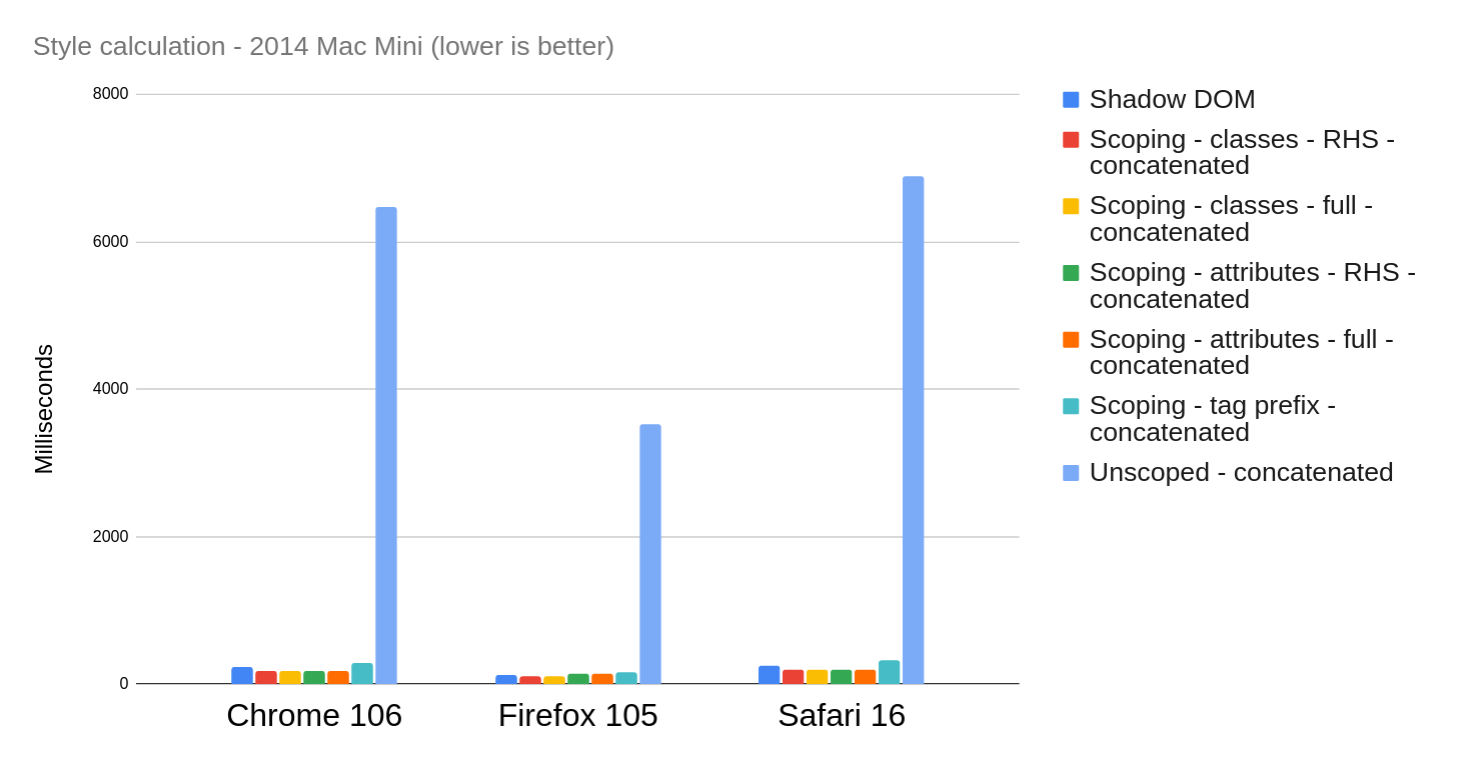
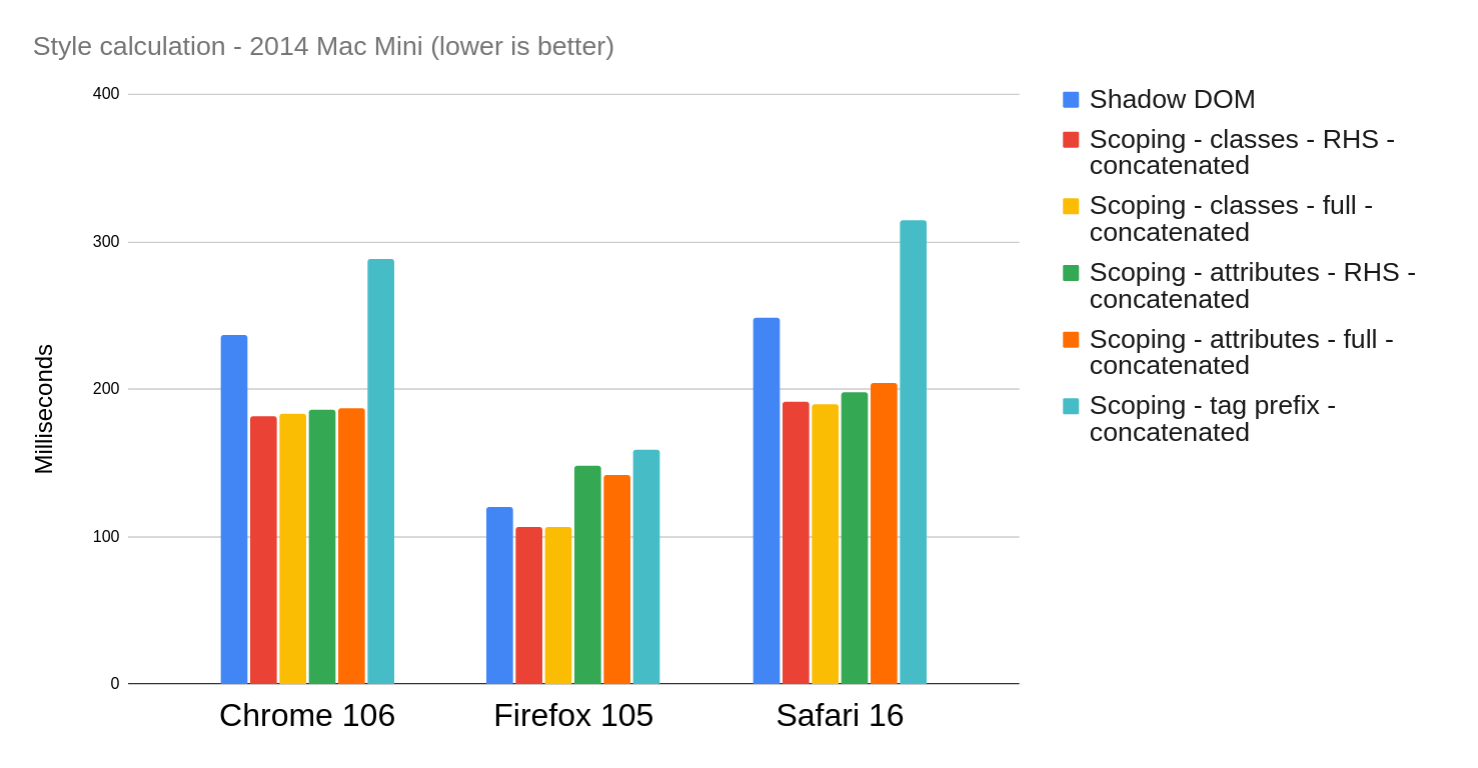
In Chrome, class selectors comfortably outperform attribute selectors, and the tag prefix is further behind. Note though, that these are the “unconcatenated” numbers – when applying the concatenation optimization, all the numbers decrease for Chrome:
Same chart with “Unscoped” removed
Table
Scenario
Chrome 106
Firefox 105
Safari 16
Shadow DOM
237.1
120
249
Scoping – classes – RHS – concatenated
182
107
192
Scoping – classes – full – concatenated
183.6
107
190
Scoping – attributes – RHS – concatenated
185.8
148
198
Scoping – attributes – full – concatenated
187.1
142
204
Scoping – tag prefix – concatenated
288.7
159
315
Unscoped – concatenated
6476.3
3526
6882
With concatenation, the difference between classes and attributes is largely erased in Chrome. As before, concatenation has little to no impact on Firefox or Safari.
In terms of which scoping strategy is fastest, overall the tag prefix seems to be the slowest, and classes are faster than attributes. Between “full” selector scoping and RHS scoping, there does not seem to be a huge difference. And overall, any scoping strategy is better than unscoped styles. (Although do keep in mind this is a microbenchmark, and some of the selectors it generates are a bit tortured and elaborate, e.g. :not(.foo) :nth-child(2):not(.bar). In a real website, the difference would probably be less pronounced.)
I’ll also note that the more work I do in this space, the less my work seems to matter – which is a good thing! Between blogging and filing bugs on browsers, I seem to have racked up adecentbodycount of browser optimizations. (Not that I can really take credit; all I did was nerd-snipe the relevant browser engineers.) Assuming Chromium fixes the concatenation perf cliff, there won’t be much to say except “use some kind of CSS scoping strategy; they’re all pretty good.”
Recently I read James Long’s article “A future for SQL on the web”. It’s a great post, and if you haven’t read it, you should definitely go take a look!
I don’t want to comment on the specifics of the tool James created, except to say that I think it’s a truly amazing feat of engineering, and I’m excited to see where it goes in the future. But one thing in the post that caught my eye was the benchmark comparisons of IndexedDB read/write performance (compared to James’s tool, absurd-sql).
The IndexedDB benchmarks are fair enough, in that they demonstrate the idiomatic usage of IndexedDB. But in this post, I’d like to show how raw IndexedDB performance can be improved using a few tricks that are available as of IndexedDB v2 and v3:
Pagination (v2)
Relaxed durability (v3)
Explicit transaction commits (v3)
Let’s go over each of these in turn.
Pagination
Years ago when I was working on PouchDB, I hit upon an IndexedDB pattern that, at the time, improved performance in Firefox and Chrome by roughly 40-50%. I’m probably not the first person to come up with this idea, but I’ll lay it out here.
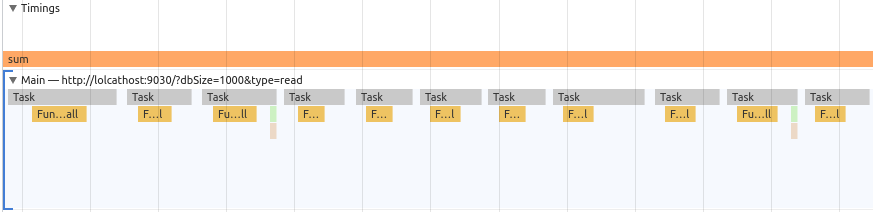
In IndexedDB, a cursor is basically a way of iterating through the data in a database one-at-a-time. And that’s the core problem: one-at-a-time. Sadly, this tends to be slow, because at every step of the iteration, JavaScript can respond to a single item from the cursor and decide whether to continue or stop the iteration.
Effectively this means that there’s a back-and-forth between the JavaScript main thread and the IndexedDB engine (running off-main-thread). You can see it in this screenshot of the Chrome DevTools performance profiler:
Notice that each call to cursor.continue() gets its own little JavaScript task, and the tasks are separated by a bit of idle time. That’s a lot of wasted time for each item in a database!
Luckily, in IndexedDB v2, we got two new APIs to help out with this problem: getAll() and getAllKeys(). These allow you to fetch multiple items from an object store or index in a single go. They can also start from a given key range and return a given number of items, meaning that we can implement a paginated cursor:
const batchSize = 100let keys, values, keyRange = nullfunction fetchMore() { // If there could be more results, fetch them if (keys && values && values.length === batchSize) { // Find keys greater than the last key keyRange = IDBKeyRange.lowerBound(keys.at(-1), true) keys = values = undefined next() }}function next() { store.getAllKeys(keyRange, batchSize).onsuccess = e => { keys = e.target.result fetchMore() } store.getAll(keyRange, batchSize).onsuccess = e => { values = e.target.result fetchMore() }}next()
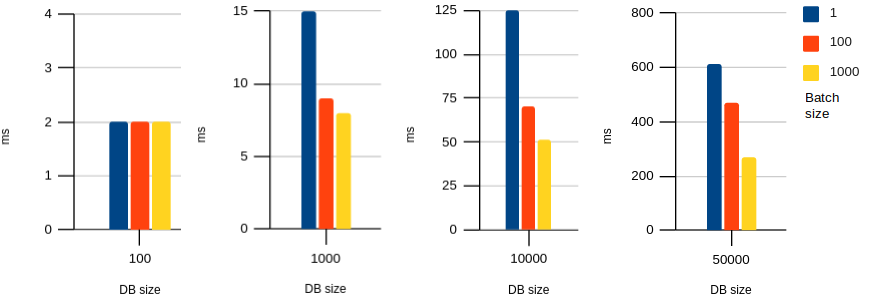
In the example above, we iterate through the object store, fetching 100 items at a time rather than just 1. Using a modified version of the absurd-sql benchmark, we can see that this improves performance considerably. Here are the results for the “read” benchmark in Chrome:
Click for table
DB size (columns) vs batch size (rows):
100
1000
10000
50000
1
8.9
37.4
241
1194.2
100
7.3
34
145.1
702.8
1000
6.5
27.9
100.3
488.3
(Note that a batch size of 1 means a cursor, whereas 100 and 1000 use a paginated cursor.)
And here’s Firefox:
Click for table
DB size (columns) vs batch size (rows):
100
1000
10000
50000
1
2
15
125
610
100
2
9
70
468
1000
2
8
51
271
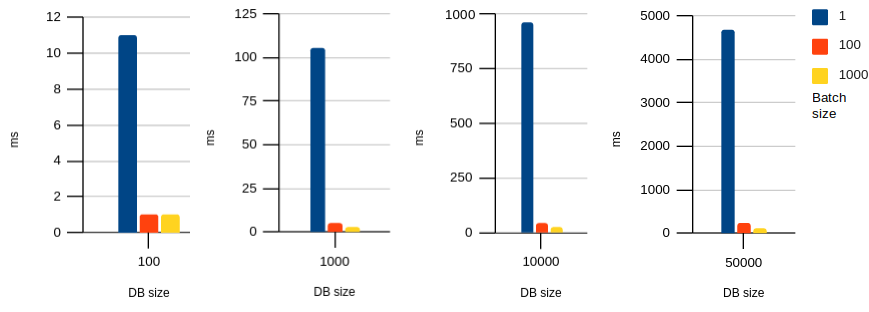
And Safari:
Click for table
DB size (columns) vs batch size (rows):
100
1000
10000
50000
1
11
106
957
4673
100
1
5
44
227
1000
1
3
26
127
As you can see, the paginated cursor is particularly effective in Safari, but it improves performance in all browser engines.
Now, this technique isn’t without its downsides. For one, you have to choose an explicit batch size, and the ideal number will depend on the size of the data and the usage patterns. You may also want to consider the downsides of overfetching – i.e. if the cursor should stop at a given value, you may end up fetching more items from the database than you really need. (Although ideally, you can use the upper bound of the key range to guard against that.)
Of course, instead of implementing a paginated cursor, you could also just use getAll() and getAllKeys() as-is and fetch all the data at once. This probably isn’t a great idea if the database is large, though, as you may run into memory pressure, especially on constrained devices. But it could be useful if the database is small.
getAll() and getAllKeys() both have great browser support, so this technique can be widely adopted for speeding up IndexedDB read patterns, at least in ascending order.
Relaxed durability
The paginated cursor can speed up database reads, but what about writes? In this case, we don’t have an equivalent to getAll()/getAllKeys() that we can lean on. Apparently there was some effort put into building a putAll(), but currently it’s abandoned because it didn’t actually improve write performance in Chrome.
That said, there are other ways to improve write performance. Unfortunately, none of these techniques are as effective as the paginated cursor, but they are worth investigating, so I’m reporting my results here.
The most significant way to improve write performance is with relaxed durability. This API is currently only available in Chrome, but it has also been implemented in WebKit as of Safari Technology Preview 130.
The idea behind relaxed durability is to resolve some disagreement between the browser vendors as to whether IndexedDB transactions should optimize for durability (writes succeed even in the event of a power failure or crash) or performance (writes succeed quickly, even if not fully flushed to disk).
It’s been welldocumented that Chrome’s IndexedDB performance is worse than Firefox’s or Safari’s, and part of the reason seems to be that Chrome defaults to a durable-by-default mode. But rather than sacrifice durability across-the-board, the Chrome team wanted to expose an explicit API for developers to decide which mode to use. (After all, only the web developer knows if IndexedDB is being used as an ephemeral cache or a store of priceless family photos.) So now we have three durability options: default, relaxed, and strict.
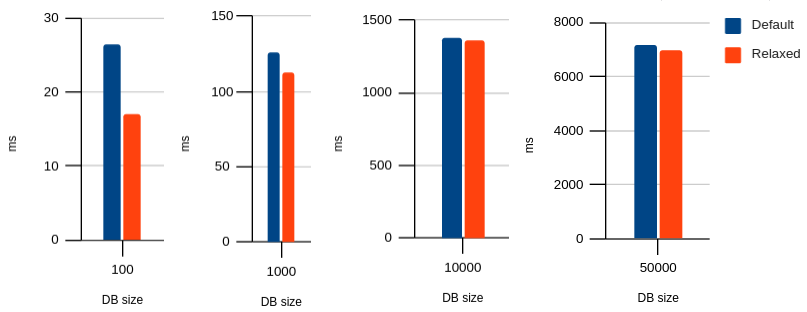
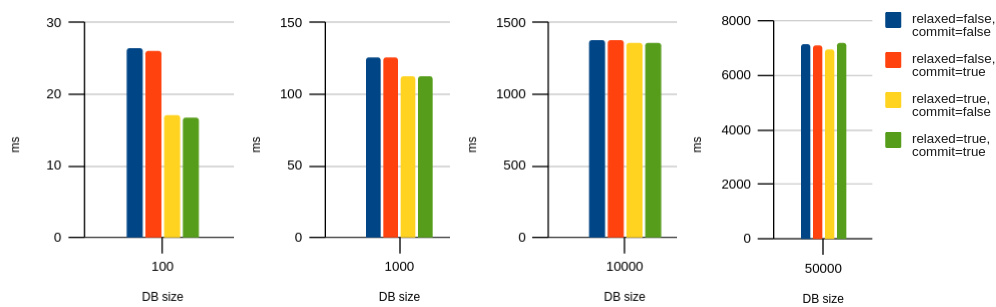
Using the “write” benchmark, we can test out relaxed durability in Chrome and see the improvement:
Click for table
Durability
100
1000
10000
50000
Default
26.4
125.9
1373.7
7171.9
Relaxed
17.1
112.9
1359.3
6969.8
As you can see, the results are not as dramatic as with the pagination technique. The effect is most visible in the smaller database sizes, and the reason turns out to be that relaxed durability is better at speeding up multiple small transactions than one big transaction.
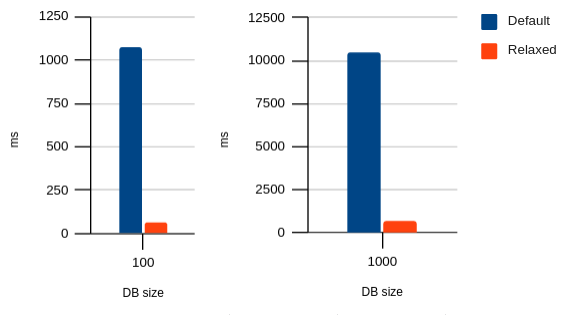
Modifying the benchmark to do one transaction per item in the database, we can see a much clearer impact of relaxed durability:
Click for table
Durability
100
1000
Default
1074.6
10456.2
Relaxed
65.4
630.7
(I didn’t measure the larger database sizes, because they were too slow, and the pattern is clear.)
Personally, I find this option to be nice-to-have, but underwhelming. If performance is only really improved for multiple small transactions, then usually there is a simpler solution: use fewer transactions.
It’s also underwhelming given that, even with this option enabled, Chrome is still much slower than Firefox or Safari:
Click for table
Browser
100
1000
10000
50000
Chrome (default)
26.4
125.9
1373.7
7171.9
Chrome (relaxed)
17.1
112.9
1359.3
6969.8
Firefox
8
53
436
1893
Safari
3
28
279
1359
That said, if you’re not storing priceless family photos in IndexedDB, I can’t see a good reason not to use relaxed durability.
Explicit transaction commits
The last technique I’ll cover is explicit transaction commits. I found it to be an even smaller performance improvement than relaxed durability, but it’s worth mentioning.
This API is available in both Chrome and Firefox, and (like relaxed durability) has also been implemented in Safari Technology Preview 130.
The idea is that, instead of allowing the transaction to auto-close based on the normal flow of the JavaScript event loop, you can explicitly call transaction.close() to signal that it’s safe to close the transaction immediately. This results in a very small performance boost because the IndexedDB engine is no longer waiting for outstanding requests to be dispatched. Here is the improvement in Chrome using the “write” benchmark:
Click for table
Relaxed / Commit
100
1000
10000
50000
relaxed=false, commit=false
26.4
125.9
1373.7
7171.9
relaxed=false, commit=true
26
125.5
1373.9
7129.7
relaxed=true, commit=false
17.1
112.9
1359.3
6969.8
relaxed=true, commit=true
16.8
112.8
1356.2
7215
You’d really have to squint to see the improvement, and only for the smaller database sizes. This makes sense, since explicit commits can only shave a bit of time off the end of each transaction. So, like relaxed durability, it has a bigger impact on multiple small transactions than one big transaction.
The results are similarly underwhelming in Firefox:
Click for table
Commit
100
1000
10000
50000
No commit
8
53
436
1893
Commit
8
52
434
1858
That said, especially if you’re doing multiple small transactions, you might as well use it. Since it’s not supported in all browsers, though, you’ll probably want to use a pattern like this:
if (transaction.commit) { transaction.commit()}
If transaction.commit is undefined, then the transaction can just close automatically, and functionally it’s the same.
Conclusion
IndexedDB has a lot of detractors, and I think most of the criticism is justified. The IndexedDB API is awkward, it has bugs and gotchas in various browser implementations, and it’s not even particularly fast, especially compared to a full-featured, battle-hardened, industry-standard tool like SQLite. The new APIs unveiled in IndexedDB v3 don’t even move the needle much. It’s no surprise that many developers just say “forget it” and stick with localStorage, or they create elaborate solutions on top of IndexedDB, such as absurd-sql.
Perhaps I just have Stockholm syndrome from having worked with IndexedDB for so long, but I don’t find it to be so bad. The nomenclature and the APIs are a bit weird, but once you wrap your head around it, it’s a powerful tool with broad browser support – heck, it even works in Node.js via fake-indexeddb and indexeddbshim. For better or worse, IndexedDB is here to stay.
That said, I can definitely see a future where IndexedDB is not the only player in the browser storage game. We had WebSQL, and it’s long gone (even though I’m still maintaining a Node.js port!), but that hasn’t stopped people from wanting a more high-level database API in the browser, as demonstrated by tools like absurd-sql. In the future, I can imagine something like the Storage Foundation API making it more straightforward to build custom databases of top of low-level storage primitives – which is what IndexedDB was designed to do, and arguably failed at. (PouchDB, for one, makes extensive use of IndexedDB’s capabilities, but I’ve seen plenty of storage wrappers that essentially use IndexedDB as a dumb key-value store.)
I’d also like to see the browser vendors (especially Chrome) improve their IndexedDB performance. The Chrome team has said that they’re focused on read performance rather than write performance, but really, both matter. A mobile app developer can ship a prebuilt SQLite .db file in their app; in terms of quickly populating a database, there is nothing even remotely close for IndexedDB. As demonstrated above, cursor performance is also not great
For those web developers sticking it out with IndexedDB, though, I hope I’ve made a case that it’s not completely a lost cause, and that its performance can be improved. Who knows: maybe the browser vendors still have some tricks up their sleeves, especially if we web developers keep complaining about IndexedDB performance. It’ll be interesting to watch this space evolve and to see how both IndexedDB and its alternatives improve over the years.
Short answer: Kinda. It depends. And it might not be enough to make a big difference in the average web app. But it’s worth understanding why.
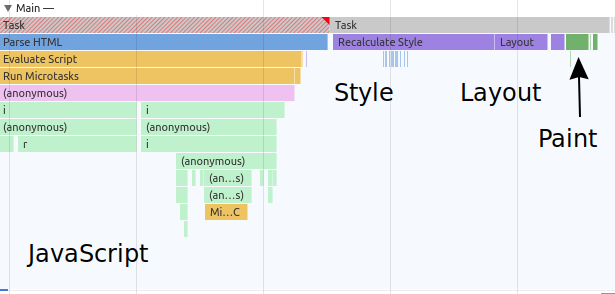
First off, let’s review the browser’s rendering pipeline, and why we might even speculate that shadow DOM could improve its performance. Two fundamental parts of the rendering process are style calculation and layout calculation, or simply “style” and “layout.” The first part is about figuring out which DOM nodes have which styles (based on CSS), and the second part is about figuring out where to actually place those DOM nodes on the page (using the styles calculated in the previous step).
A performance trace in Chrome DevTools, showing the basic JavaScript → Style → Layout → Paint pipeline.
Browsers are complex, but in general, the more DOM nodes and CSS rules on a page, the longer it will take to run the style and layout steps. One of the ways we can improve the performance of this process is to break up the work into smaller chunks, i.e. encapsulation.
For layout encapsulation, we have CSS containment. This has already been covered in otherarticles, so I won’t rehash it here. Suffice it to say, I think there’s sufficient evidence that CSS containment can improve performance (I’ve seen it myself), so if you haven’t tried putting contain: content on parts of your UI to see if it improves layout performance, you definitely should!
For style encapsulation, we have something entirely different: shadow DOM. Just like how CSS containment can improve layout performance, shadow DOM should (in theory) be able to improve style performance. Let’s consider why.
What is style calculation?
As mentioned before, style calculation is different from layout calculation. Layout calculation is about the geometry of the page, whereas style calculation is more explicitly about CSS. Basically, it’s the process of taking a rule like:
div > button { color: blue;}
And a DOM tree like:
<div> <button></button></div>
…and figuring out that the <button> should have color: blue because its parent is a <div>. Roughly speaking, it’s the process of evaluating CSS selectors (div > button in this case).
Now, in the worst case, this is an O(n * m) operation, where n is the number of DOM nodes and m is the number of CSS rules. (I.e. for each DOM node, and for each rule, figure out if they match each other.) Clearly, this isn’t how browsers do it, or else any decently-sized web app would become grindingly slow. Browsers have a lot of optimizations in this area, which is part of the reason that the common advice is not to worry too much about CSS selector performance (see this article for a good, recent treatment of the subject).
That said, if you’ve worked on a non-trivial codebase with a fair amount of CSS, you may notice that, in Chrome performance profiles, the style costs are not zero. Depending on how big or complex your CSS is, you may find that you’re actually spending more time in style calculation than in layout calculation. So it isn’t a completely worthless endeavor to look into style performance.
Shadow DOM and style calculation
Why would shadow DOM improve style performance? Again, it’s because of encapsulation. If you have a CSS file with 1,000 rules, and a DOM tree with 1,000 nodes, the browser doesn’t know in advance which rules apply to which nodes. Even if you authored your CSS with something like CSS Modules, Vue scoped CSS, or Svelte scoped CSS, ultimately you end up with a stylesheet that is only implicitly coupled to the DOM, so the browser has to figure out the relationship at runtime (e.g. using class or attribute selectors).
Shadow DOM is different. With shadow DOM, the browser doesn’t have to guess which rules are scoped to which nodes – it’s right there in the DOM:
In this case, the browser doesn’t need to test the div {color: green} rule against every node in the DOM – it knows that it’s scoped to <my-component>. Ditto for the div {color: blue} rule in <another-component>. In theory, this can speed up the style calculation process, because the browser can rely on explicit scoping through shadow DOM rather than implicit scoping through classes or attributes.
Benchmarking it
That’s the theory, but of course things are always more complicated in practice. So I put together a benchmark to measure the style calculation performance of shadow DOM. Certain CSS selectors tend to be faster than others, so for decent coverage, I tested the following selectors:
Roughly, I would expect IDs and classes to be the fastest, followed by attributes and attribute values, followed by the “silly” selector (thrown in to add something to really make the style engine work).
To measure, I used a simple requestPostAnimationFrame polyfill, which measures the time spent in style, layout, and paint. Here is a screenshot in the Chrome DevTools of what’s being measured (note the “total” under the Timings section):
To run the actual benchmark, I used Tachometer, which is a nice tool for browser microbenchmarks. In this case, I just took the median of 51 iterations.
The benchmark creates several custom elements, and either attaches a shadow root with its own <style> (shadow DOM “on”) , or uses a global <style> with implicit scoping (shadow DOM “off”). In this way, I wanted to make a fair comparison between shadow DOM itself and shadow DOM “polyfills” – i.e. systems for scoping CSS that don’t rely on shadow DOM.
Each CSS rule looks something like this:
#foo { color: #000000;}
And the DOM structure for each component looks like this:
<div id="foo">hello</div>
(Of course, for attribute and class selectors, the DOM node would have an attribute or class instead.)
Benchmark results
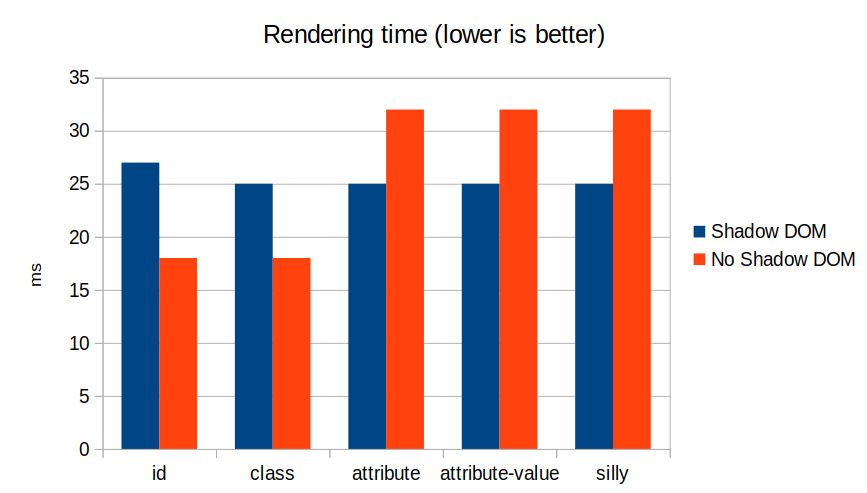
Here are the results in Chrome for 1,000 components and 1 CSS rule for each component:
Click for table
id
class
attribute
attribute-value
silly
Shadow DOM
67.90
67.20
67.30
67.70
69.90
No Shadow DOM
57.50
56.20
120.40
117.10
130.50
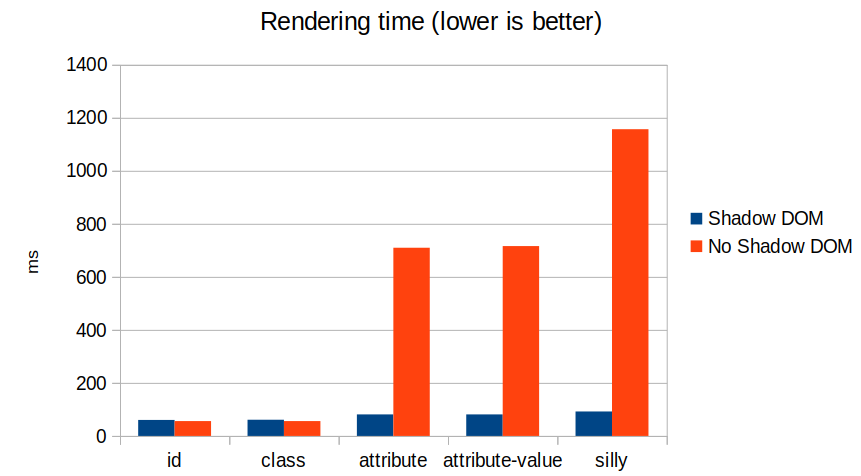
As you can see, classes and IDs are about the same with shadow DOM on or off (in fact, it’s a bit faster without shadow DOM). But once the selectors get more interesting (attribute, attribute value, and the “silly” selector), shadow DOM stays roughly constant, whereas the non-shadow DOM version gets more expensive.
We can see this effect even more clearly if we bump it up to 10 CSS rules per component:
Click for table
id
class
attribute
attribute-value
silly
Shadow DOM
70.80
70.60
71.10
72.70
81.50
No Shadow DOM
58.20
58.50
597.10
608.20
740.30
The results above are for Chrome, but we see similar numbers in Firefox and Safari. Here’s Firefox with 1,000 components and 1 rule each:
Click for table
id
class
attribute
attribute-value
silly
Shadow DOM
27
25
25
25
25
No Shadow DOM
18
18
32
32
32
And Firefox with 1,000 components, 10 rules each:
Click for table
id
class
attribute
attribute-value
silly
Shadow DOM
30
30
30
30
34
No Shadow DOM
22
22
143
150
153
And here’s Safari with 1,000 components and 1 rule each:
Click for table
id
class
attribute
attribute-value
silly
Shadow DOM
57
58
61
63
64
No Shadow DOM
52
52
126
126
177
And Safari with 1,000 components, 10 rules each:
Click for table
id
class
attribute
attribute-value
silly
Shadow DOM
60
61
81
81
92
No Shadow DOM
56
56
710
716
1157
All benchmarks were run on a 2015 MacBook Pro with the latest version of each browser (Chrome 92, Firefox 91, Safari 14.1).
Conclusions and future work
We can draw a few conclusions from this data. First off, it’s true that shadow DOM can improve style performance, so our theory about style encapsulation holds up. However, ID and class selectors are fast enough that actually it doesn’t matter much whether shadow DOM is used or not – in fact, they’re slightly faster without shadow DOM. This indicates that systems like Svelte, CSS Modules, or good old-fashioned BEM are using the best approach performance-wise.
This also indicates that using attributes for style encapsulation does not scale well compared to classes. So perhaps scoping systems like Vue would be better off switching to classes.
Another interesting question is why, in all three browser engines, classes and IDs are slightly slower when using shadow DOM. This is probably a better question for the browser vendors themselves, and I won’t speculate. I will say, though, that the differences are small enough in absolute terms that I don’t think it’s worth it to favor one or the other. The clearest signal from the data is just that shadow DOM helps to keep the style costs roughly constant, whereas without shadow DOM, you would want to stick to simple selectors like classes and IDs to avoid hitting a performance cliff.
As for future work: this is a pretty simple benchmark, and there are lots of ways to expand it. For instance, the benchmark only has one inner DOM node per component, and it only tests flat selectors – no descendant or sibling selectors (e.g. div div, div > div, div ~ div, and div + div). In theory, these scenarios should also favor shadow DOM, especially since these selectors can’t cross shadow boundaries, so the browser doesn’t need to look outside of the shadow root to find the relevant ancestors or siblings. (Although the browser’s Bloom filter makes this more complicated – see these notes for an good explanation of how this optimization works.)
Overall, though, I’d say that the numbers above are not big enough that the average web developer should start worrying about optimizing their CSS selectors, or migrating their entire web app to shadow DOM. These benchmark results are probably only relevant if 1) you’re building a framework, so any pattern you choose is magnified multiple times, or 2) you’ve profiled your web app and are seeing lots of high style calculation costs. But for everyone else, I hope at least that these results are interesting, and reveal a bit about how shadow DOM works.
Update: Thomas Steiner wondered about tag selectors as well (e.g. div {}), so I modified the benchmark to test it out. I’ll only report the results for the Shadow DOM version, since the benchmark uses divs, and in the non-shadow case it wouldn’t be possible to use tags alone to distinguish between different divs. In absolute terms, the numbers look pretty close to those for IDs and classes (or even a bit faster in Chrome and Firefox):
For me, one of the most aggravating performance issues on the web is when it’s slow to type into a text input. I’m a fairly fast typist, so if there’s even a tiny delay in a <textarea> or <input>, I can feel it slowing me down, and it drives me nuts.
I find this problem especially irksome because it’s usually solvable with a few simple tricks. There’s no reason for a chat app or a social media app to be slow to type into, except that web developers often take the naïve approach, and that’s where the delay comes from.
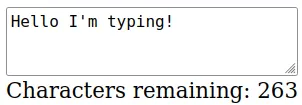
To understand the source of input delays, let’s take a concrete example. Imagine a Twitter-like UI with a text field and a “remaining characters” count. As you type, the number gradually decreases down to zero.
Whenever the event fires, update some global state (e.g. in Redux).
Update the “remaining characters” display based on that global state.
And here’s a live example. Really mash on the keyboard if you don’t notice the input delay:
The problem with the naïve approach is that it usually ends up doing far too much work relative to the benefit that the user gets out of the “remaining characters” display. In the worst case, changing the global state could cause the entire UI to re-render (e.g. in a poorly-optimized React app), meaning that as the user types, every keypress causes a full global re-render.
Also, because we are directly listening to the input event, there will be a delay between the actual keypress and the character appearing in the <textarea>. Because the DOM is single-threaded, and because we’re doing blocking work on the main thread, the browser can’t render the new input until that work finishes. This can lead to noticeable typing delays and therefore user frustration.
My preferred solution to this kind of problem is to use requestIdleCallback to wait for the UI thread to be idle before running the blocking code. For instance, something like this:
We are not directly blocking the input event with anything expensive, so there shouldn’t be a delay between typing a character and seeing that character appear in the <textarea>.
We are not updating the UI for every keypress. requestIdleCallback will batch the UI updates when the user pauses between typing characters. This is sensible, because the user probably doesn’t care if the “remaining characters” count updates for every single keypress – their attention is on the text field, not on the remaining characters.
On a slower machine, requestIdleCallback will naturally do fewer batches-per-keypress than on a faster machine. So a user on a faster device will have the benefit of a faster-updating UI, but neither user will experience poor input responsiveness.
And here’s a live example of the optimized version. Feel free to mash on the keyboard: you shouldn’t see (much) of a delay!
In the past, you might have used something like debouncing to solve this problem. But I like requestIdleCallback because of the third point above: it naturally adapts to the characteristics of the user’s device, rather than forcing us to choose a hardcoded delay.
To be fair, this technique isn’t foolproof. Some UIs really need to respond immediately to every keypress: for instance, to disallow certain characters or resize the <textarea> as it grows. (In those cases, though, I would throttle with requestAnimationFrame.) Also, some UIs may still lag if the work they’re doing is large enough that it’s perceptible even when batched. (In the live examples above, I set an artificial delay of 70 milliseconds, which you can still “feel” with the optimized version.) But for the most part, using requestIdleCallback is enough to get rid of any major responsiveness issues.
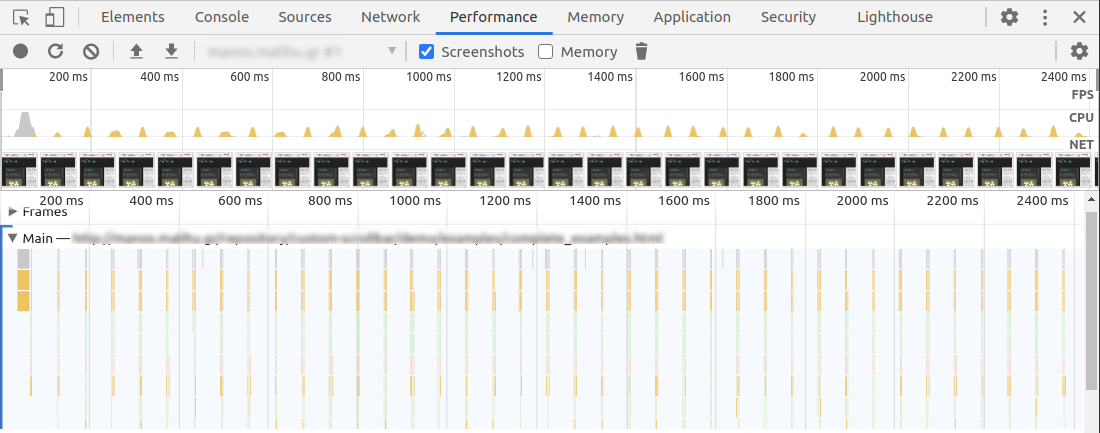
If you want to test this on your own website, I’d recommend putting the Chrome DevTools at 6x CPU slowdown and then mashing the keyboard as fast as you can. On a vanilla <textarea> or <input> with no JavaScript handlers, you won’t see any delay. Whereas if your own website feels sluggish, then maybe it’s time to optimize your text inputs!
Should standalone web components be written in vanilla JavaScript? Or is it okay if they use (or even bundle) their own framework? With Vue 3 announcing built-in support for building web components, and with frameworks like Svelte and Lit having offered this functionality for some time, it seems like a good time to revisit the question.
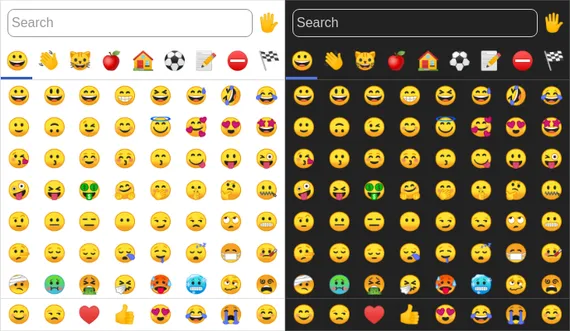
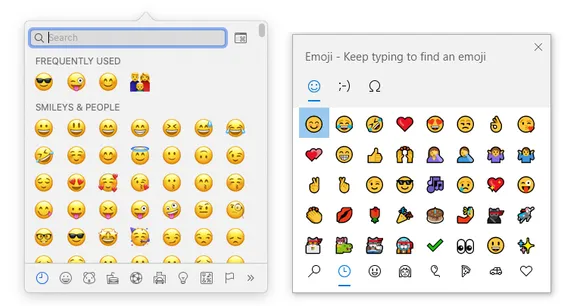
First off, I should state my own bias. When I released emoji-picker-element, I made the decision to bundle its framework (Svelte) directly into the component. Clearly I don’t think this is a bad idea (despite my reputation as a perf guy!), so I’d like to explain why it doesn’t shock me for a web component to rely on a framework.
Size concerns
Many web developers might bristle at the idea of a standalone web component relying on its own framework. If I want a date picker, or a modal dialog, or some other utility component, why should I pay the tax of including its entire framework in my bundle? But I think this is the wrong way to look at things.
First off, JavaScript frameworks have come a long way from the days when they were huge, kitchen-sink monoliths. Today’s frameworks like Svelte, Lit, Preact, Vue, and others tend to be smaller, more focused, and more tree-shakeable. A Svelte “hello world” is 1.18 kB (minified and compressed), a Lit “hello world” is 5.7 kB, and petite-vue aims for a 5.8 kB compressed size. These are not huge by any stretch of the imagination.
If you dig deeper, the situation gets even more interesting. As Evan You points out, some frameworks (such as Vue) have a relatively high baseline cost that is amortized by a small per-component size, whereas other frameworks (such as Svelte) have a lower baseline cost but a higher per-component size. The days when you could confidently say “Framework X costs Y kilobytes” are over – the conversation has become much more complex and nuanced.
Second, with code-splitting becoming more common, the individual cost of a dependency has become less important than whether it can be lazy-loaded. For instance, if you use a date picker or modal dialog that bundles its own framework, why not dynamically import() it when it actually needs to be shown? There’s no reason to pay the cost on initial page load for a component that the user may never even need.
Looking at runtime cost, a framework can be small, but that’s not necessarily the same thing as being fast. Sometimes it takes more code to make an algorithm faster! For example, Inferno aims for faster runtime performance at the cost of a higher bundle size when compared to something like Preact. So it’s worth considering whether a component is fast in other metrics beside bundle size.
Caveats
That said, I don’t think “bring your own framework” is without its downsides. So let’s go over some problems you may run into when you mix-and-match frameworks.
You can imagine that, if every web component came with its own framework, then you might end up with multiple copies of the same framework on the same page. And this is definitely a concern! But assuming that the component externalizes its framework dependency (e.g. import 'my-framework'), then multiple components should be able to share the same framework code under the hood.
I used this technique in my own emoji-picker-element. If you’re already using Svelte in your project, then you can import 'emoji-picker-element/svelte' and get a version that doesn’t bundle its own framework, ensuring de-duplication. This saves a paltry 1.4 kB out of 13.9 kB total (compressed), but hey, it’s there. (Potentially I could make this the default behavior, but I like the bundled version for the benefit of folks who use <script> tags instead of bundlers. Maybe something like Skypack could make this simpler in the future.)
Another potential downside of bring-your-own-framework is when frameworks mutate global state, which can lead to conflicts between frameworks. For instance, React has historically attached global event listeners to the document (although thankfully this changed in React v17). Also, Angular’s Zone.js overrides the global Object.defineProperty (although there is a workaround). When mixing-and-matching frameworks, it’s best to avoid frameworks that mutate global state, or to carefully ensure that they don’t conflict with one another.
If you look at the compiled output for a framework like Svelte, though, you’ll see that it’s basically just a collection of pure functions that don’t modify the global state. Combining such frameworks in the same codebase is no more harmful than bundling different versions of Lodash or Underscore.
Now, to be clear: in an ideal world, your web app would only contain one framework. Otherwise it’s shipping duplicate code that essentially does the same thing. But web development is all about tradeoffs, and I don’t believe that it’s worth rejecting a component out-of-hand just to avoid a few extra kBs from a tiny framework like Preact or Lit. (Of course, for a larger framework, this may be a different story. But this is true of any component dependency, not just a framework.)
Framework chauvinism
In general, I don’t think the question should be whether a component uses its own framework or not. Instead, the question should be: Is this component small enough/fast enough for my use case? After all, a component can be huge without using a framework, and it can be slow even when written in vanilla JS. The framework is part of the story, but it’s not the whole story.
I also think that focusing too much on frameworks plays against the strengths of web components. The whole point of web components is to have a standard, interoperable way to add a component to a page without worrying about what framework it’s using under the hood (or if it’s using a framework at all).
Web components also serve as a fantastic glue layer between frameworks. If there’s a great React component out there that you want to use in your Vue codebase, why not wrap it in Remount (2.4 kB) and Preact (4 kB) and call it a day? Even if you spent the time to laboriously create your own Vue version of the component, are you really sure you’ll improve upon the battle-tested version that already exists on npm?
Part of the reason I wrote emoji-picker-element as a web component (and not, for instance, as a Svelte component) is that I think it’s silly to re-implement something like an emoji picker in multiple frameworks. The core business logic of an emoji picker has nothing to do with frameworks – in fact, I think my main contribution to the emoji picker landscape was in innovating around IndexedDB, accessibility, and data loading. Should we really re-implement all of those things just to satisfy developers who want their codebase to be pure Vue, or pure Lit, or pure React, or pure whatever? Do we need an entirely new ecosystem every time a new framework comes out?
The belief that it’s unacceptable for a web app to contain more than one framework is something I might call “framework chauvinism.” And honestly, if you feel this way, then you may as well choose the framework that has the most market share and biggest ecosystem – i.e. you may as well choose React. After all, if you chose Vue or Svelte or some other less-popular framework, then you might find that when you reach for some utility component on npm, nobody has written it in your framework of choice.
Now, if you like living in a React-only world: that’s great. You can definitely do so, given how enormous the React ecosystem is. But personally, I like playing around with different frameworks, comparing their strengths and weaknesses, and letting developers use whichever one tickles their fancy. The vision of a React-only future fills me with a deep boredom. I would much rather see frameworks continue to compete and innovate and push the boundaries of what’s possible in web development than to see one framework “solve” web development forever. (Or to see frameworks locked in a perpetual ecosystem race against each other.)
To me, the main benefit of web components is that they liberate us from the tyranny of frameworks. Rather than focusing on cosmetic questions of how a component is written (did you use React? did you use Vue? who cares!), we can focus on more important questions of performance, accessibility, correctness, and things that have nothing to do with whether you use HTML templates or a render() function. Balking at web components that use frameworks is, in my opinion, missing the entire point of web components.
There’s an old story about a drunk trying to find his keys in the streetlight. Why? Well, because that’s where it’s the brightest. It’s a funny story, but also relatable, because as humans we all tend to take the path of least resistance.
I think we have the same problem in the web performance community. There’s a huge focus recently on JavaScript bundle size: how big are your dependencies? Could you use a smaller one? Could you lazy-load it? But I believe we focus on bundle size first and foremost because it’s easy to measure.
That’s not to say that bundle size isn’t important! Just like how you might have left your keys in the streetlight. And heck, you might as well check there first, since it’s the quickest place to look. But here are some other things that are harder to measure, but can be just as important:
Parse/compile time
Execution time
Power usage
Memory usage
Disk usage
A JavaScript dependency can affect all of these metrics. But they’re less discussed than bundle size, and I suspect it’s because they’re less straightforward to measure. In this post, I want to talk about how I approach bundle size, and how I approach the other metrics too.
Bundle size
When talking about the size of JavaScript code, you have to be precise. Some folks will say “my library is 10 kilobytes.” Is that minified? Gzipped? Tree-shaken? Did you use the highest Gzip setting (9)? What about Brotli compression?
This may sound like hair-splitting, but the distinction actually matters, especially between compressed and uncompressed size. The compressed size affects how fast it is to send bytes over the wire, whereas the uncompressed size affects how long it takes the browser to parse, compile, and execute the JavaScript. (These tend to correlate with code size, although it’s not a perfect predictor.)
The most important thing, though, is to be consistent. You don’t want to measure Library A using unminified, uncompressed size versus Library B using minified and compressed size (unless there’s a real difference in how you’re serving them).
Bundlephobia
For me, Bundlephobia is the Swiss Army knife of bundle size analysis. You can look up any dependency from npm and it will tell you both the minified size (what the browser parses and executes) as well as the minified and compressed size (what the browser downloads).
For instance, we can use this tool to see that react-dom weighs 121.1kB minified, but preact weighs 10.2kB. So we can confirm that Preact really is the honest goods – a React-compatible framework at a fraction of the size!
In this case, I don’t get hung up on exactly which minifier or exactly what Gzip compression level Bundlephobia is using, because at least it’s using the same system everywhere. So I know I’m comparing apples to apples.
Now that said, there are some caveats with Bundlephobia:
It doesn’t tell you the tree-shaken cost. If you’re only importing one part of a module, the other parts may be tree-shaken out.
It won’t tell you about subdirectory dependencies. So for instance, I know how expensive it is to import 'preact', but import 'preact/compat' could be literally anything – compat.js could be a huge file, and I’d have no way to know.
If there are polyfills involved (e.g. your bundler injecting a polyfill for Node’s Buffer API, or for the JavaScript Object.assign() API), you won’t necessarily see it here.
In all the above cases, you really just have to run your bundler and check the output. Every bundler is different, and depending on the configuration or other factors, you might end up with a huge bundle or a tiny one. So next, let’s move on to the bundler-specific tools.
Webpack Bundle Analyzer
I love Webpack Bundle Analyzer. It offers a nice visualization of every chunk in your Webpack output, as well as which modules are inside of those chunks.
In terms of the sizes it shows, the two most useful ones are “parsed” (the default) and “Gzipped”. “Parsed” essentially means “minified,” so these two measurements are roughly comparable with what Bundlephobia would tell us. But the difference here is that we’re actually running our bundler, so we know that the sizes are accurate for our particular application.
Rollup Plugin Analyzer
For Rollup, I would really love to have a graphical interface like Webpack Bundle Analyzer. But the next best thing I’ve found is Rollup Plugin Analyer, which will output your module sizes to the console while building.
Unfortunately, this tool doesn’t give us the minified or Gzipped size – just the size as seen by Rollup before such optimizations occur. It’s not perfect, but it’s great in a pinch.
I’m sure you can find other tools to add to this list!
Beyond the bundle
As I mentioned, though, I don’t think JavaScript bundle size is everything. It’s great as a first approximation, because it’s (comparatively) easy to measure, but there are plenty of other metrics that can impact page performance.
Runtime CPU cost
The first and most important one is the runtime cost. This can be broken into a few buckets:
Parsing
Compilation
Execution
These three phases are basically the end-to-end cost of calling require("some-dependency") or import "some-dependency". They may correlate with bundle size, but it’s not a one-to-one mapping.
For a trivial example, here is a (tiny!) JavaScript snippet that consumes a ton of CPU:
This snippet would get a great score on Bundlephobia, but unfortunately it will block the main thread for 5 seconds. This is a somewhat absurd example, but in the real world, you can find small libraries that nonetheless hammer the main thread. Traversing through all elements in the DOM, iterating through a large array in LocalStorage, calculating digits of pi… unless you’ve hand-inspected all your dependencies, it’s hard to know what they’re doing in there.
Parsing and compilation are both really hard to measure. It’s easy to fool yourself, because browsers have lots of optimizations around bytecode caching. For instance, browsers might not run the parse/compile step on second page load, or third page load (!), or when the JavaScript is cached in a Service Worker. So you might think a module is cheap to parse/compile, when really the browser has just cached it in advance.
Compilation and execution in Chrome DevTools. Note that Chrome does some parsing and compilation off-main-thread.
The only way to be 100% safe is to completely clear the browser cache and measure first page load. I don’t like to mess around, so typically I will do this in a private/guest browsing window, or in a completely separate browser. You’ll also want to make sure that any browser extensions are disabled (private mode typically does this), since those extensions can impact page load time. You don’t want to get halfway into analyzing a Chrome trace and realize that you’re measuring your password manager!
Another thing I usually do is set Chrome’s CPU throttling to 4x or 6x. I think of 4x as “similar enough to a mobile device,” and 6x as “a super-duper slowed-down machine that makes the traces much easier to read, because everything is bigger.” Use whichever one you want; either will be more representative of real users than your (probably) high-end developer machine.
If I’m concerned about network speed, this is the point where I would turn on network throttling as well. “Fast 3G” is usually a good one that hits the sweet spot between “more like the real world” and “not so slow that I start yelling at my computer.”
So putting it all together, my steps for getting an accurate trace are typically:
Open a private/guest browsing window.
Navigate to about:blank if necessary (you don’t want to measure the unload event for your browser home page).
Open the DevTools in Chrome.
Go to the Performance tab.
In the settings, turn on CPU throttling and/or network throttling.
Click the Record button.
Type the URL and press Enter.
Stop recording when the page has loaded.
Now you have a performance trace (also known as a “timeline” or “profile”), which will show you the parse/compile/execution times for the JavaScript code in your initial page load. Unfortunately this part can end up being pretty manual, but there are some tricks to make it easier.
Most importantly, use the User Timing API (aka performance marks and measures) to mark parts of your web application with names that are meaningful to you. Focus on parts that you worry will be expensive, such as the initial render of your root application, a blocking XHR call, or bootstrapping your state object.
You can strip out performance.mark/performance.measure calls in production if you’re worried about the (small) overhead of these APIs. I like to turn it on or off based on query string parameters, so that I can easily turn on user timings in production if I want to analyze the production build. Terser’s pure_funcs option can also be used to remove performance.mark and performance.measure calls when you minify. (Heck, you can remove console.logs here too. It’s very handy.)
Another useful tool is mark-loader, which is a Webpack plugin that automatically wraps your modules in mark/measure calls so that you can see each dependency’s runtime cost. Why try to puzzle over a JavaScript call stack, when the tool can tell you exactly which dependencies are consuming exactly how much time?
Loading Three.js, Moment, and React in production mode. Without the User Timings, would you be able to figure out where the time is being spent?
One thing to be aware of when measuring runtime performance is that the costs can vary between minified and unminified code. Unused functions may be stripped out, code will be smaller and more optimized, and libraries may define process.env.NODE_ENV === 'development' blocks that don’t run in production mode.
My general strategy for dealing with this situation is to treat the minified, production build as the source of truth, and to use marks and measures to make it comprehensible. As mentioned, though, performance.mark and performance.measure have their own small overhead, so you may want to toggle them with query string parameters.
Power usage
You don’t have to be an environmentalist to think that minimizing power use is important. We live in a world where people are increasingly browsing the web on devices that aren’t plugged into a power outlet, and the last thing they want is to run out of juice because of a misbehaving website.
I tend to think of power usage as a subset of CPU usage. There are some exceptions to this, like waking up the radio for a network connection, but most of the time, if a website is consuming excessive power, it’s because it’s consuming excessive CPU on the main thread.
So everything I’ve said above about improving JavaScript parse/compile/execute time will also reduce power consumption. But for long-lived web applications especially, the most insidious form of power drain comes after first page load. This might manifest as a user suddenly noticing that their laptop fan is whirring or their phone is growing hot, even though they’re just looking at an (apparently) idle webpage.
Once again, the tool of choice in these situations is the Chrome DevTools Performance tab, using essentially the same steps described above. What you’ll want to look for, though, is repeated CPU usage, usually due to timers or animations. For instance, a poorly-coded custom scrollbar, an IntersectionObserver polyfill, or an animated loading spinner may decide that they need to run code in every requestAnimationFrame or in a setInterval loop.
A poorly-behaved JavaScript widget. Notice the little peaks of JavaScript usage, showing constant CPU usage even while the page is idle.
Note that this kind of power drain can also occur due to unoptimized CSS animations – no JavaScript required! (In that case, it would be purple peaks rather than yellow peaks in the Chrome UI.) For long-running CSS animations, be sure to always prefer GPU-accelerated CSS properties.
Another tool you can use is Chrome’s Performance Monitor tab, which is actually different from the Performance tab. I see this as a sort of heartbeat monitor of how your website is doing perf-wise, without the hassle of manually starting and stopping a trace. If you see constant CPU usage here on an otherwise inert webpage, then you probably have a power usage problem.
The same poorly-behaved JavaScript widget in Performance Monitor. Note the constant low hum of CPU usage, as well as the sawtooth pattern in the memory usage, indicating memory constantly being allocated and de-allocated.
Also: hat tip to the WebKit folks, who added an explicit Energy Impact panel to the Safari Web Inspector. Another good tool to check out!
Memory usage
Memory usage is something that used to be much harder to analyze, but the tooling has improved a lot recently.
I already wrote a post about memory leaks last year, but it’s important to remember that memory usage and memory leaks are two separate problems. A website can have high memory usage without explicitly leaking memory. Whereas another website could start small, but eventually balloon to a huge size due to runaway leaks.
You can read the above blog post for how to analyze memory leaks. But in terms of memory usage, we have a new browser API that helps quite a bit with measuring it: performance.measureUserAgentSpecificMemory (formerly performance.measureMemory, which sadly was much less of a mouthful). There are several advantages of this API:
It returns a promise that automatically resolves after garbage collection. (No more need for weird hacks to force GC!)
It measures more than just JavaScript VM size – it also includes DOM memory as well as memory in web workers and iframes.
In the case of cross-origin iframes, which are process-isolated due to Site Isolation, it will break down the attribution. So you can know exactly how memory-hungry your ads and embeds are!
In this case, bytes is the banner metric you’ll want to use for “how much memory am I using?” The breakdown is optional, and the spec explicitly notes that browsers can decide not to include it.
That said, it can still be finicky to use this API. First off, it’s only available in Chrome 89+. (In slightly older releases, you can set the “enable experimental web platform features” flag and use the old performance.measureMemory API.) More problematic, though, is that due to the potential for abuse, this API has been limited to cross-origin isolated contexts. This effectively means that you have to set some special headers, and if you rely on any cross-origin resources (external CSS, JavaScript, images, etc.), they’ll need to set some special headers too.
If that sounds like too much trouble, though, and if you only plan to use this API for automated testing, then you can run Chrome with the --disable-web-security flag. (At your own risk, of course!) Note, though, that measuring memory currently doesn’t work in headless mode.
Of course, this API also doesn’t give you a great level of granularity. You won’t be able to figure out, for instance, that React takes up X number of bytes, and Lodash takes up Y bytes, etc. A/B testing may be the only effective way to figure that kind of thing out. But this is still much better than the older tooling we had for measuring memory (which is so flawed that it’s really not even worth describing).
Disk usage
Limiting disk usage is most important in web application scenarios, where it’s possible to reach browser quota limits depending on the amount of available storage on the device. Excessive storage usage can come in many forms, such as stuffing too many large images into the ServiceWorker cache, but JavaScript can add up too.
You might think that the disk usage of a JavaScript module is a direct correlate of its bundle size (i.e. the cost of caching it), but there are some cases were this isn’t true. For instance, with my own emoji-picker-element, I make heavy use of IndexedDB to store the emoji data. This means I have to be cognizant of database-related disk usage, such as storing unnecessary data or creating excessive indexes.
The Chrome DevTools has an “Application” tab which shows the total storage usage for a website. This is pretty good as a first approximation, but I’ve found that this screen can be a little bit inconsistent, and also the data has to be gathered manually. Plus, I’m interested in more than just Chrome, since IndexedDB has vastly different implementations across browsers, so the storage size could vary wildly.
The solution I landed on is a small script that launches Playwright, which is a Puppeteer-like tool that has the advantage of being able to launch more browsers than just Chrome. Another neat feature is that it can launch browsers with a fresh storage area, so you can launch a browser, write storage to /tmp, and then measure the IndexedDB usage for each browser.
To give you an example, here is what I get for the current version of emoji-picker-element:
Browser
IndexedDB directory size
Chromium
2.13 MB
Firefox
1.37 MB
WebKit
2.17 MB
Of course, you would have to adapt this script if you wanted to measure the storage size of the ServiceWorker cache, LocalStorage, etc.
Another option, which might work better in a production environment, would be the StorageManager.estimate() API. However, this is designed more for figuring out if you’re approaching quota limits rather than performance analysis, so I’m not sure how accurate it would be as a disk usage metric. As MDN notes: “The returned values are not exact; between compression, deduplication, and obfuscation for security reasons, they will be imprecise.”
Conclusion
Performance is a multi-faceted thing. It would be great if we could reduce it down to a single metric such as bundle size, but if you really want to cover all the bases, there are a lot of different angles to consider.
Sometimes this can feel overwhelming, which is why I think initiatives like the Core Web Vitals, or a general focus on bundle size, aren’t such a bad thing. If you tell people they need to optimize a dozen different metrics, they may just decide not to optimize any of them.
That said, for JavaScript dependencies in particular, I would love if it were easier to see all of these metrics at a glance. Imagine if Bundlephobia had a “Nutrition Facts”-type view, with bundle size as the headline metric (sort of like calories!), and all the other metrics listed below. It wouldn’t have to be precise: the numbers might depend on the browser, the size of the DOM, how the API is used, etc. But you could imagine some basic stats around initial CPU execution time, memory usage, and disk usage that wouldn’t be impossible to measure in an automated way.
If such a thing existed, it would be a lot easier to make informed decisions about which JavaScript dependencies to use, whether to lazy-load them, etc. But in the meantime, there are lots of different ways of gathering this data, and I hope this blog post has at least encouraged you to look a little bit beyond the streetlight.
Emoji pickers are ubiquitous. It seems that every social media and messaging app needs to have a little grid of cartoon faces you can click on.
There’s nothing inherently wrong with emoji (they’re fun! they’re popular! they make communication livelier!). But the way they’re currently used on the web is wasteful.
The emoji picker landscape
The main problem is that there are a lot of emoji: 1,814 as of the latest version, Emoji v.13.0. That doesn’t even include the skin tone variants (or combinations of skin tones), and each of those emoji has associated shortcodes, tags, ASCII emoticons, etc. And the way most web-based emoji pickers work, all of this data is stored in-memory.
A popular JavaScript library to manage emoji data, emojibase, currently offers two JSON files for English: the main one, which is 854kB, and the “compact” one, which is 543kB. Now imagine that, for every browser tab you have open, each website is potentially loading over a half a megabyte of data, just to show a little grid of emoji!
The median web page is now around 2MB, according to the Internet Archive. Hopefully any emoji picker data is lazy-loaded, but either way, half a megabyte is a big chunk in any reasonable perf budget.
You could say that these websites should ditch the custom picker and just ask people to use the built-in emoji picker for their OS. The problem is that a lot of people don’t know that these exist. (How many Mac users know about Cmd+Ctrl+Space? How many Windows users have memorized Win+.?) Some OSes don’t even have a native emoji picker (try Ubuntu or stock Android for an example). Even ignoring these problems, websites often need to tweak the emoji picker, such as adding their own custom emoji (e.g. Discord, Slack, Mastodon).
The built-in emoji pickers on macOS and Windows. Ask a non-techie if they’ve ever even seen these.
Shouldn’t browser vendors offer a standard emoji picker element? Something like <input type="emoji">? I’ve actually proposed this in the past, but I’m not aware of any browser vendors that were interested in picking it up.
Also, standardizing an emoji picker would probably require coordination between the JavaScript (TC39) and web (W3C/WHATWG) standards, as you’d ideally want a JavaScript-based API for querying Intl-specific emoji data (e.g. to show autocompletions) in addition to the actual picker element. The degree of collaboration between the browser vendors and the standards bodies would have to be fairly involved, so it seems unlikely to happen soon.
Starting from scratch
When I first wrote Pinafore, I didn’t want to deal with this situation at all. I found the whole idea of custom emoji pickers to be absurd – just use the one built into the OS!
When I realized how unreliable the OS-provided emoji pickers were, though, and after considering the need for Mastodon custom emoji, I eventually decided to use emoji-mart, a React component that Mastodon also uses. For various reasons, though, I grew frustrated with emoji-mart (even as I contributed to it), and I mused about how I might build my own.
What would the ideal web-based emoji picker be like? I settled on a few requirements:
Data should be stored in IndexedDB, not in-memory. The Unicode Consortium is never going to stop adding emoji, so at some point keeping all the emoji and their metadata in-memory is going to become unsustainable (or at least, unwieldy).
It should be a custom element. Web components are a thing; using an emoji picker should be as simple as dropping <emoji-picker></emoji-picker> into your HTML.
It should be lightweight. If every website is going to use their own emoji picker, then it should at least have a low JavaScript footprint.
It should be accessible. Accessibility shouldn’t be an afterthought; the emoji picker should work well for screen reader users, keyboard users – everyone.
So against my better judgment, I embarked on the arduous task: building a full emoji picker, the way I thought it should be built. Today it’s available on npm, and you can try out a demo version here. I call it (somewhat presumptuously): emoji-picker-element.
Design
emoji-picker-element follows the vision I set out above. Usage can be as simple as:
Under the hood, emoji-picker-element will download the emojibase data, parse it, and store it in IndexedDB. (By default, it fetches from jsdelivr.) The second time the picker loads, it will just do a HEAD request and check the ETag to see if anything has changed.
This is a bonus of using IndexedDB: we can avoid downloading, parsing, and processing the emoji data a second time, because it’s already available on-disk! Following offline-first principles, emoji-picker-element also lazily updates in the background if the data has changed.
emoji-picker-element shows only native emoji (no spritesheets), in the categories defined by emojibase. If any emoji are not supported by the OS or browser, then those will be hidden.
Like most emoji pickers, you can also do a text search, set a skin tone, and see a list of frequently-used emoji. I also added support for custom emoji with custom categories, which is an important feature for Mastodon admins who want to add some pizzazz and personality to their instance.
To keep the bundle size small and the runtime performance fast, I’m using Svelte 3 to implement the picker. The tree-shaken Svelte “runtime” is bundled with the component, so consumers don’t have to care what framework I’m using – it “just works.”
Also, I’m using Shadow DOM, which keeps styles nicely encapsulated, while also offering a neat styling API using CSS variables:
The same page with the emojibase “compact” JSON object loaded
The same page with the emojibase full JSON object loaded
Here are the results:
Scenario
Bytes
Relative to blank page
blank
635 kB
0 B
picker
1.38 MB
744 kB
compact
1.43 MB
792 kB
full
1.77 MB
1.13 MB
As you can see, emoji-picker-element takes up less memory than merely loading the “compact” JSON itself! That’s all the HTML, CSS, and JavaScript needed to render the component, and it’s already smaller than the emoji data alone.
Note that the size of a JSON file (in this case, 854kB for the full data and 543kB for the compact data) is not the same as the memory usage when it’s parsed into a JavaScript object. That’s why it’s important to actually parse the JSON to get the true memory usage.
Disk usage
Given that emoji-picker-element moves data out of memory and into IndexedDB, you might also wonder how much space it takes up on disk. There are three major IndexedDB implementations in browsers (Chrome/Chromium, Firefox/Gecko, and Safari/WebKit), so I wrote a script to calculate the IndexedDB disk usage. Here it is:
Browser
Disk usage
Chrome
896kB
Firefox
1.26MB
GNOME Web (WebKit)
1.77MB
(Note that these values may be a bit inconsistent – it seems that all browsers do some amount of compacting over time. These are the lowest I saw.)
These numbers are not small, but they make sense given the size of the emoji data, and the fact that the database contains an index for text search. I find it to be a reasonable tradeoff given the memory savings.
Runtime performance
To calculate the load time, I measure from the beginning of the custom element’s constructor to the requestPostAnimationFrame (polyfilled) after rendering the first set of emoji and favorites bar.
On a Nexus 5 (released in 2013) running Chrome on Android 6, median of 5 iterations, I got the following numbers:
Type
Duration
First load (uncached)
2982ms
Subsequent load (cached)
259ms
(This was running on a local network – I’m focusing on CPU performance more than network performance.)
Looking at a Chrome trace of first load shows that the Nexus 5 spends about 200ms rendering the initial view (i.e. the “loading” state), 200ms downloading the data on the local intranet, 400ms processing it, 650ms inserting it into IndexedDB, roughly another second of IndexedDB transaction costs, then 250ms rendering the final result:
In the above screenshot, the total render took 2.76s.
On second load, most of those IndexedDB costs are gone, and we merely fetch from IDB and render:
In this case, the total render took 434ms.
Interestingly, because it’s IndexedDB, we can actually move the initial data loading to a web worker, which frees up the main thread. In that case, the initial load looks like this:
The total time in this case was about 2.5s. Clearly, we’ve just shifted the costs from one thread to another (we haven’t made anything faster), but it’s pretty neat that we can avoid jank this way! In the end, only about 300ms of work happens on the main thread.
This points to a nice application-level optimization: assuming the emoji picker is lazy-loaded, the app can proactively spin up a worker thread to populate the database. This would ensure that the emoji data is already ready when the user first opens the picker.
Bundle size
Currently the bundle size of emoji-picker-element is 39.66kB minified, and 12.3kB minified+Brotli. Those are both a bit too large for my taste, but they do compare favorably with other emoji pickers on npm: the smallest one I could find with a similar feature set is interweave-emoji-picker, which is 40.7kB minified.
Of course, the other emoji pickers don’t also include the entire runtime for their framework. The reason I’m bundling Svelte with the component is 1) Svelte’s runtime is quite small already, 2) it’s also tree-shaken to only include what you need, and 3) I’m assuming that most folks out there aren’t using Svelte, since it’s still an up-and-coming framework.
That said, I do have a separate build for those who are already using Svelte 3, and in that case the bundle size is about 11kB smaller (minified). Either way, emoji-picker-element should ideally be lazy-loaded!
Pitfalls and future work
Not everything went swimmingly well with this project, so I have some ideas for where it can improve in the future.
The woes of native emoji
First off, using native emoji is easier said than done. No OS has Emoji v13 yet, and unless you’re on an Apple device, it’s unlikely that you even have Emoji v12. (Only 19% of Android devices are running Android 10+, which has Emoji v12, whereas 75% of iOS devices are running iOS 13.2+, which has Emoji v12.1.) Or your OS may have incomplete emoji (Microsoft’s choice to use two-letter codes for flags is… odd at best). If you’re using Chrome on Ubuntu, you have no native color emoji at all, unless you install a separate package.
GitLab has a great post detailing all the headaches of supporting native emoji. It involves rendering emoji to canvas and checking the rendered color, as well as handling edge cases such as ligatures that may appear as “double emoji” when rendered improperly. (E.g. “person with red hair” may appear as a person with a floating wig of red hair next to them.) In short, it’s a mess.
“Person with red hair” when rendered incorrectly.
However, my goal with this project is to skate to where the puck is going, not where it is. My hope is that browsers and OSes will get their acts together, and start to broadly support native color emoji without hacks or workarounds. (If they don’t, more websites than just emoji-picker-element will appear broken! So they have every incentive to do this.)
Plus, I don’t have to jump through as many hoops as GitLab, because I’m not concerned about supporting every emoji under the sun. (If I were, I would just use a spritesheet!) So my current strategy is a sniff test – check a representative emoji from each emoji version, and hide the entire set if one emoji is unsupported. This isn’t perfect, but I believe it’s good enough for most use cases. And it should improve over time as native emoji support improves.
Shadow DOM
This could be a blog post in and of itself, but shadow DOM is a double-edged sword. On the one hand, I love how easy it is to encapsulate CSS, and to offer a styling API with CSS variables. On the other hand, I found that any libraries that manage focus – e.g. focus-visible, a11y-dialog, or my own arrow-key-navigation – had to be tweaked to account for shadow DOM. Otherwise, the focus behavior didn’t work properly.
I won’t go into the nitty-gritty details (see my Mastodon thread for that). Long story short: none of these libraries worked with shadow DOM, except for focus-visible, which required some manual work. So for a11y-dialog I forked it, and for arrow-key-navigation I had to implement shadow DOM support. Kind of annoying, when all I really wanted was style encapsulation!
But again: I’m trying to skate to where the puck is going. My hope is that eventually browsers will iron out problems with the shadow DOM API, and make it easier for libraries to implement focus traps, custom focus hotkeys, etc.
Conclusion
Building emoji-picker-element was not easy. Properly rendering native emoji required arcane knowledge of emoji support on various platforms and browsers, as well as how to detect it. Add in skin tone variants (which may or may not be supported, even if the base emoji is supported), and it can get very complicated very fast.
I’m deeply indebted to the work of those who came before me: emojibase for providing the emoji data, Emojipedia for being an inexhaustible resource on the subject, and if-emoji and GitLab for demystifying how to detect emoji support.
Of course, I’m also grateful for all the existing emoji pickers that I drew inspiration from – it’s nice not to have to reinvent the wheel! Most emoji pickers have converged on a strikingly similar design, so I didn’t feel the need to be particularly creative with my own design. (Although I do think some of my CSS animations are nice.)
I still believe that the emoji picker is probably something browsers should handle themselves, to avoid the inevitable bloat of every web page loading their own picker. But for the time being, there should at least be a web-based emoji picker that’s as lightweight and performant as possible. emoji-picker-element is my best attempt at that vision.
Update: I’ve written a tool to automate many of the steps described in this post.
Part of the bargain we struck when we switched from building server-rendered websites to client-rendered SPAs is that we suddenly had to take a lot more care with the resources on the user’s device. Don’t block the UI thread, don’t make the laptop’s fan spin, don’t drain the phone’s battery, etc. We traded better interactivity and “app-like” behavior for a new class of problems that don’t really exist in the server-rendered world.
One of these problems is memory leaks. A poorly-coded SPA can easily eat up megabytes or even gigabytes of memory, continuing to gobble up more and more resources, even as it’s sitting innocently in a background tab. At this point, the page might start to slow to a crawl, or the browser may just terminate the tab and you’ll see Chrome’s familiar “Aw, snap!” page.
(Of course, a server-rendered website can also leak memory on the server side. But it’s extremely unlikely to leak memory on the client side, since the browser will clear the memory every time you navigate between pages.)
The subject of memory leaks is not well-covered in the web development literature. And yet, I’m pretty sure that most non-trivial SPAs leak memory, unless the team behind them has a robust infrastructure for catching and fixing memory leaks. It’s just far too easy in JavaScript to accidentally allocate some memory and forget to clean it up.
So why is so little written about memory leaks? My guesses:
Lack of complaints: most users are not diligently watching Task Manager while they surf the web. Typically, you won’t hear about it from your users unless the leak is so bad that the tab is crashing or the app is slowing down.
Lack of data: the Chrome team doesn’t provide data about how much memory websites are using in the wild. Nor are websites often measuring this themselves.
Lack of tooling: it’s still not easy to identify or fix memory leaks with existing tooling.
Lack of caring: browsers are pretty good at killing tabs that consume too much memory. Plus people seem to blame the browser rather than the websites.
In this post, I’d like to share some of my experience fixing memory leaks in web applications, and provide some examples of how to effectively track them down.
Anatomy of a memory leak
Modern web app frameworks like React, Vue, and Svelte use a component-based model. Within this model, the most common way to introduce a memory leak is something like this:
That’s it. That’s all it takes to introduce a memory leak. If you call addEventListener on some global object (the window, the <body>, etc.) and then forget to clean it up with removeEventListener when the component is unmounted, then you’ve created a memory leak.
Worse, you’ve just leaked your entire component. Because this.onMessage is bound to this, the component has leaked. So have all of its child components. And very likely, so have all the DOM nodes associated with the components. This can get very bad very fast.
Here is the fix:
// Mount phasethis.onMessage = this.onMessage.bind(this);window.addEventListener('message', this.onMessage);// Unmount phasewindow.removeEventListener('message', this.onMessage);
Note that we saved a reference to the bound onMessage function. You have to pass in exactly the same function to removeEventListener that you passed in to addEventListener, or else it won’t work.
The memory leak landscape
In my experience, the most common sources of memory leaks are APIs like these:
addEventListener. This is the most common one. Call removeEventListener to clean it up.
setTimeout / setInterval. If you create a recurring timer (e.g. to run every 30 seconds), then you need to clean it up with clearTimeout or clearInterval. (setTimeout can leak if it’s used like setInterval – i.e., scheduling a new setTimeout inside of the setTimeout callback.)
IntersectionObserver, ResizeObserver, MutationObserver, etc. These new-ish APIs are very convenient, but they are also likely to leak. If you create one inside of a component, and it’s attached to a globally-available element, then you need to call disconnect() to clean them up. (Note that DOM nodes which are garbage-collected will have their listeners and observers garbage-collected as well. So typically, you only need to worry about global elements, e.g. the <body>, the document, an omnipresent header/footer element, etc.)
Promises, Observables, EventEmitters, etc. Any programming model where you’re setting up a listener can leak memory if you forget to stop listening. (A Promise can leak if it’s never resolved or rejected, in which case any .then() callbacks attached to it will leak.)
Global object stores. With something like Redux the state is global, so if you’re not careful, you can just keep appending memory to it and it will never get cleaned up.
Infinite DOM growth. If you implement an infinite scrolling list without virtualization, then the number of DOM nodes will grow without bound.
Of course, there are plenty of other ways to leak memory, but these are the most common ones I’ve seen.
Identifying memory leaks
This is the hard part. I’ll start off by saying that I just don’t think any of the tooling out there is very good. I’ve tried Firefox’s memory tool, the Edge and IE memory tools, and even Windows Performance Analyzer. The best-in-class is still the Chrome Developer Tools, but it has a lot of rough edges that are worth knowing about.
In the Chrome DevTools, our main tool of choice is going to be the “heap snapshot” tool in the “Memory” tab. There are other memory tools in Chrome, but I don’t find them very helpful for identifying leaks.
The Heap Snapshot tool allows you to take a memory capture of the main thread or web workers or iframes.
When you click the “take snapshot” button, you’ve captured all the live objects in a particular JavaScript VM on that web page. This includes objects referenced by the window, objects referenced by setInterval callbacks, etc. Think of it as a frozen moment in time representing all the memory used by that web page.
The next step is to reproduce some scenario that you think may be leaking – for instance, opening and closing a modal dialog. Once the dialog is closed, you’d expect memory to return back to the previous level. So you take another snapshot, and then diff it with the previous snapshot. This diffing is really the killer feature of the tool.
However, there are a few limitations of the tool that you should be aware of:
Even if you click the little “collect garbage” button, you may need to take a few consecutive snapshots for Chrome to truly clean up the unreferenced memory. In my experience, three should be enough. (Check the total memory size of each snapshot – it should eventually stabilize.)
If you have web workers, service workers, iframes, shared workers, etc., then this memory will not be represented in the heap snapshot, because it lives in another JavaScript VM. You can capture this memory if you want, but just be sure you know which one you’re measuring.
Sometimes the snapshotter will get stuck or crash. In that case, just close the browser tab and start all over again.
At this point, if your app is non-trivial, then you’re probably going to see a lot of leaking objects between the two snapshots. This is where things get tricky, because not all of these are true leaks. Many of these are just normal usage – some object gets de-allocated in favor of another one, something gets cached in a way that will get cleaned up later, etc.
Cutting through the noise
I’ve found that the best way to cut through the noise is to repeat the leaking scenario several times. For instance, instead of just opening and closing a modal dialog once, you might open and close it 7 times. (7 is a nice conspicuous prime number.) Then you can check the heap snapshot diff to see if any objects leaked 7 times. (Or 14 times, or 21 times.)
A heap snapshot diff. Note that we’re comparing snapshot #6 to snapshot #3, because I take three captures in a row to allow more garbage collection to occur. Also note that several objects are leaking 7 times.
(Another helpful technique is to run through the scenario once before recording the first snapshot. Especially if you are using a lot of code-splitting, then your scenario is likely to have a one-time memory cost of loading the necessary JavaScript modules.)
At this point, you might wonder why we should sort by the number of objects rather than the total memory. Intuitively, we’re trying to reduce the amount of memory leaking, so shouldn’t we focus on the total memory usage? Well, this doesn’t work very well, for an important reason.
When something is leaking, it’s because (to paraphrase Joe Armstrong) you’re holding onto the banana, but you ended up getting the banana, the gorilla holding the banana, and the whole jungle. If you measure based on total bytes, you’re measuring the jungle, not the banana.
Let’s go back to the addEventListener example above. The source of the leak is an event listener, which is referencing a function, which references a component, which probably references a ton of stuff like arrays, strings, and objects.
If you sort the heap snapshot diff by total memory, then it’s going to show you a bunch of arrays, strings, and objects – most of which are probably unrelated to the leak. What you really want to find is the event listener, but this takes up a minuscule amount of memory compared to the stuff it’s referencing. To fix the leak, you want to find the banana, not the jungle.
So if you sort by the number of objects leaked, you’re going to see 7 event listeners. And maybe 7 components, and 14 sub-components, or something like that. That “7” should stand out like a sore thumb, since it’s such an unusual number. And no matter how many times you repeat the scenario, you should see exactly that number of objects leaking. This is how you can quickly find the source of the leak.
Walking the retainer tree
The heap snapshot diff will also show you a “retainer” chain showing which objects are pointing to which other objects and thus keeping the memory alive. This is how you can figure out where the leaking object was allocated.
The retainer chain shows you which object is referencing the leaked object. The way to read it is that each object is referenced by the object below it.
In the above example, there is a variable called someObject which is referenced by a closure (aka “context”), which is referenced by an event listener. If you click the source link, it will take you to the JavaScript declaration, which is fairly straightforward:
In the above example, the “context” is the onMessage closure which references the someObject variable. (This is a contrived example; real memory leaks can be much less obvious!)
But the heap snapshotting tool has several limitations:
If you save and re-load the snapshot file, then you will lose all the file references to where the object was allocated. So for instance, you won’t see that the event listener’s closure comes from line 22 of foo.js. Since this is really critical information, it’s almost useless to save and send heap snapshot files.
If there are WeakMaps involved, then Chrome will show you those references even though they don’t really matter – those objects would be de-allocated as soon as the other references are cleaned up. So they are just noise.
Chrome classifies the objects by their prototype. So the more you use actual classes/functions and the less you use anonymous objects, the easier it will be to see what exactly is leaking. As an example, imagine if our leak was somehow due to an object rather than an EventListener. Since object is extremely generic, we’re unlikely to see exactly 7 of them leaking.
This is my basic strategy for identifying memory leaks. I’ve successfully used this technique to find dozens of memory leaks in the past.
This guide is just the start, though – beyond this, you will also have to be handy with setting breakpoints, logging, and testing your fix to see if it resolves the leak. Unfortunately, this is just inherently a time-consuming process.
In a lab or synthetic testing environment, you can increase the granularity on this API by using the Chrome flag --enable-precise-memory-info. You can also create heap snapshot files by calling the proprietary Chromedriver command :takeHeapSnapshot. This has the same limitation mentioned above, though – you probably want to take three in a row and discard the first two.
Since event listeners are the most common source of memory leaks, another technique that I’ve used is to monkey-patch the addEventListener and removeEventListener APIs to count the references and ensure they return to zero. Here is an example of how to do that.
In the Chrome DevTools, you can also use the proprietary getEventListeners() API to see the event listeners attached to a particular element. Note that this can only be used in DevTools, though.
Update: Mathias Bynens has informed me of another useful DevTools API: queryObjects(), which can show you all objects created with a particular constructor. Christoph Guttandin also has an interesting blog post about using this API for automated memory leak detection in Puppeteer.
Summary
The state of finding and fixing memory leaks in web apps is still fairly rudimentary. In this blog post, I’ve covered some of the techniques that have worked for me, but admittedly this is still a difficult and time-consuming process.
As with most performance problems, an ounce of prevention can be worth a pound of cure. You might find it worthwhile to put synthetic testing in place rather than trying to debug a memory leak after the fact. Especially if there are several leaks on a page, it will probably turn into an onion-peeling exercise – you fix one leak, then find another, then repeat (while weeping the whole time!). Code review can also help catch common memory leak patterns, if you know what to look for.
JavaScript is a memory-safe language, so it’s somewhat ironic how easy it is to leak memory in a web application. Part of this is just inherent to UI design, though – we need to listen for mouse events, scroll events, keyboard events, etc., and these are all patterns that can easily lead to memory leaks. But by trying to keep our web applications’ memory usage low, we can improve runtime performance, avoid crashes, and be respectful of resource constraints on the user’s device.
Thanks to Jake Archibald and Yang Guo for feedback on a draft of this post. And thanks to Dinko Bajric for inventing the “choose a prime number” technique, which I’ve found so helpful in memory leak analysis.
If there’s one thing I’ve learned about web performance, it’s that you have to approach it with a sense of open-mindedness and humility. Otherwise, prepare to be humbled.
Just as soon as you think you’ve got it all figured out, poof! Browsers change their implementation. Or poof! The spec changes. Or poof! You just flat-out turn out to be wrong. So you have to constantly test and revalidate your assumptions.
In a recent post, I suggested that pointermove events fire more frequently than requestAnimationFrame, and so it’s a good idea to throttle them to rAF. I also rattled off some other events that may fire faster than rAF, such as scroll, wheel, touchmove, and mousemove.
Do these events actually fire faster than rAF, though? It’s an important detail! If browsers already align/throttle these events to rAF, then there’s little point in recreating that same behavior in userland. (Thankfully an extra rAF won’t add an extra frame delay, though, assuming browsers fire the rAF-aligned events right before rAF. Thanks Jake Archibald for this tip!)
TL;DR: it varies across browsers and events. I’d still recommend the rAF-throttling technique described in my previous post.
Step one: check the spec
The first question to ask is: what does the spec say?
After reading the specs for pointermove, mousemove, touchmove, scroll, and wheel, I found that the only mention of animation frame timing was in pointermove and scroll. The spec for pointermovesays:
A user agent MUST fire a pointer event named pointermove when a pointer changes button state. […] These events may be coalesced or aligned to animation frame callbacks based on UA decision.
(Emphasis mine.) So browsers are not required to coalesce or align pointermove events to animation frames, but they may do so. (Presumably, this is the point of getCoalescedEvents().)
As for scroll, it’s mentioned in the event loop spec, where it says “for each fully active Document […], run the scroll steps for that Document” as part of the steps before running rAF callbacks. So on the main document at least, scroll is definitely supposed to fire before rAF.
A user agent must dispatch this event type to indicate when the user moves a touch point along the touch surface. […] Note that the rate at which the user agent sends touchmove events is implementation-defined, and may depend on hardware capabilities and other implementation details.
(Emphasis mine.) So this time, nothing about animation frames, and also some language about “implementation-defined.” Similarly, here’s mousemove:
The frequency rate of events while the pointing device is moved is implementation-, device-, and platform-specific, but multiple consecutive mousemove events SHOULD be fired for sustained pointer-device movement, rather than a single event for each instance of mouse movement.
(Emphasis mine.) So we’re starting to get a pretty clear picture (or a hazy one, depending on your perspective). It seems that, aside from scroll, the specs don’t have much to say about whether events should be coalesced with rAF or not.
Step two: test it
However, this doesn’t mean browsers don’t do it! After all, it’s clearly in browsers’ interests to coalesce these events to animation frames. Assuming that most web developers do the simplest possible thing and handle the events directly, then any browser that aligns with rAF will avoid some unintentional jank from noisy input events.
Do browsers actually do this, though? Thankfully Jake has written a nice demo which makes it easy to test this. I’ve also extended his demo to test scroll events. And because I apparently have way too much free time on my hands (or I just hate uncertainty when it comes to browser stuff), I went ahead and compiled the data for various browsers and OSes:
pointermove
mousemove
touchmove
wheel
scroll
Chrome 76 (Windows 10)
Y*
Y*
N/A
Y*
Y
Firefox 68 (Windows 10)
Y
Y
N/A
N
Y
Edge 18 (Windows 10)
N
N
N/A
N
Y
Chrome 76 (macOS 10.14.6)
Y*
Y*
N/A
Y*
Y
Firefox 68 (macOS 10.14.6)
Y
Y
N/A
N
Y
Safari 12.1.2 (macOS 10.14.6)
N/A
N
N/A
N
N
Safari Technology Preview 13.1 (macOS 10.14.6)
N
N
N/A
N
N
Chrome 76 (Ubuntu 16.04)
Y*
Y*
N/A
Y*
Y
Firefox 68 (Ubuntu 16.04)
Y
Y
N/A
N
Y
GNOME Web 3.28.5 (Ubuntu 16.04)
N/A
N
N/A
N
N
Chrome 76 (Android 6)
Y
N/A
Y
N/A
Y
Firefox 68 (Android 6)
N/A
N/A
Y
N/A
Y
Safari (iOS 12.4)
N/A
N/A
Y
N/A
N
Abbreviations:
Y: Yes, events are coalesced and aligned to rAF.
N: No, events fire independently of and faster than rAF.
As you can see from the data, there is a lot of variance in terms of which events and browsers align to rAF. Although for the most part, it seems consistent within browser engines (e.g. GNOME Web is a WebKit-based browser, and it patterns with macOS Safari). Note though that I only tested a regular mouse or trackpad, not exotic input devices such as a Wacom stylus, Surface Pen, etc.
Given this data, I would take the cautious approach and still do the manual rAF-throttling as described in my previous blog post. It has the upside of being guaranteed to work roughly the same across all browsers, at the cost of some extra bookkeeping. [1]
Depending on your supported browser matrix, though, and depending on when you’re reading this (maybe at a point in the future when all browser input events are rAF-aligned!), then you may just handle the input directly and trust the browser to align it to rAF. [2]
Thanks to Ben Kelly and Jake Archibald for feedback on a draft of this blog post. Thanks also to Jake for clueing me in to this rAF-throttling business in the first place.
Footnotes
1. Interestingly, in the case of pointermove at least, the browser behavior can be feature-detected by checking getCoalescedEvents (i.e. Firefox and Chrome have it, Edge and Safari Technology Preview don’t). So you can use PointerEvent.prototype.getCoalescedEvents as a feature check. But there’s little point in feature-detecting, since manual rAF-throttling doesn’t add an extra frame delay in browsers that already rAF-align.
2. Jake also pointed me to an interesting detail: “Although these events are synced to rendering, they’ll flush if another non-synced event happens.” So for instance, keyboard events will interfere with pointermove and cause them to no longer sync to rAF, which you can reproduce in Jake’s demo by typing on the keyboard and moving the mouse at the same time. Another good reason to just rAF-throttle and be sure!